
You open your Facebook leads and see a list of names. Some people want a quote. Someone asked for a callback. A few are just exploring their options. Who should you call first?
With LeadSavvy Pro connected to ChatGPT, you can talk that through. Ask for a rundown of your enquiries, look closer at the promising ones and update your pipeline as you go. You can type your questions or use ChatGPT voice when you’re catching up between appointments.
Here’s a practical way to manage your Facebook leads with ChatGPT, from the first review to a clearer plan for follow-up. The LeadSavvy Pro integration is available through early access; get in touch and we’ll help you connect your account.
Start with the leads you actually need to review
Your Facebook and Instagram Instant Form enquiries arrive in LeadSavvy Pro. Connecting your account brings those contacts, notes and deals into your ChatGPT conversation.
If you manage leads for more than one business, choose the right workspace first. Then start with a simple question:
“Show me my latest leads. Give me a quick summary of what each person asked for.”
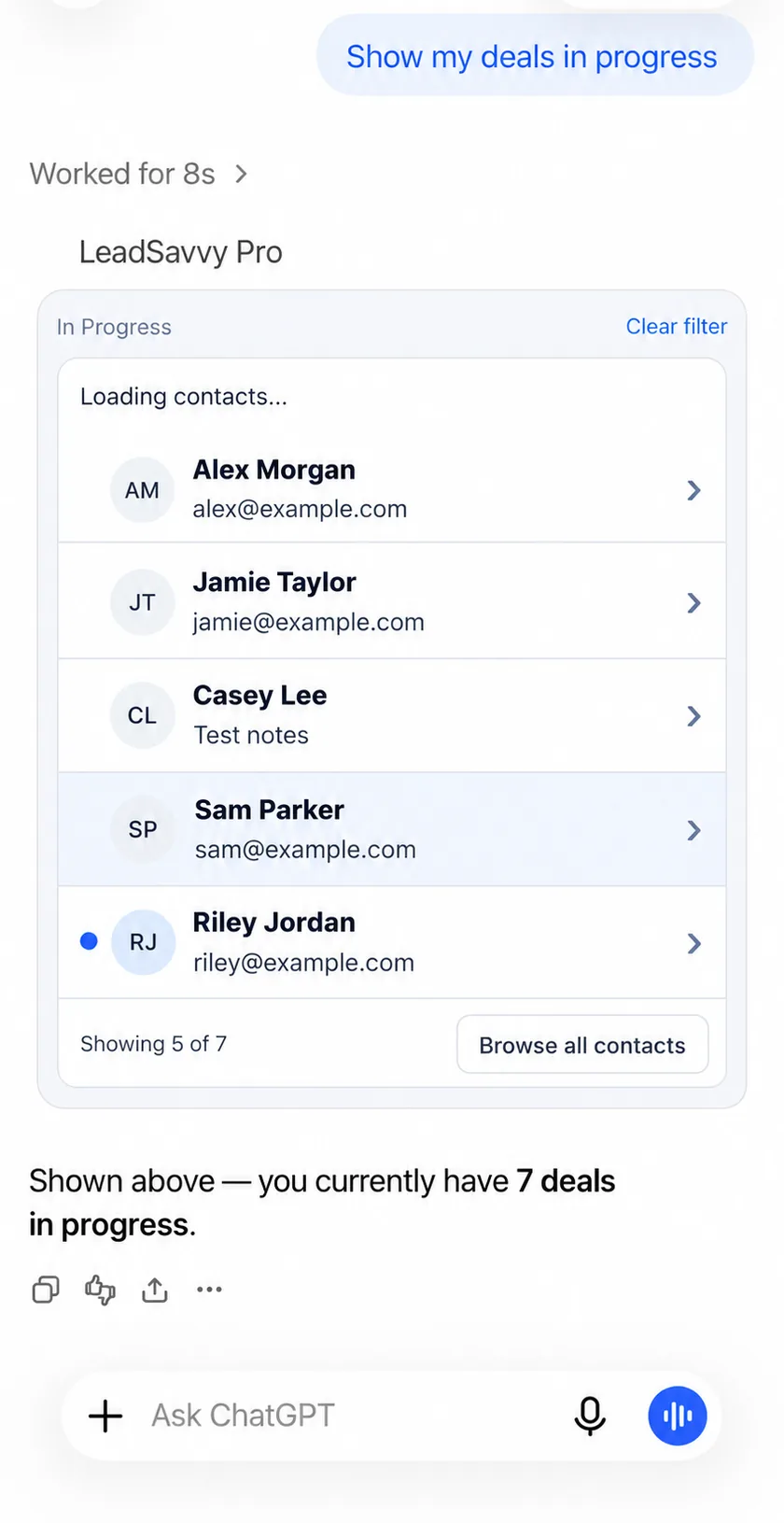
You can narrow the review to unread leads or ask to see your deals in progress. Keep the first batch manageable so you have time to discuss the enquiries that deserve a closer look.
Once the leads are in the conversation, you can ask follow-up questions without repeating the whole request. “Tell me more about Alex” is a perfectly good next step.
Use ChatGPT voice to talk through your Facebook leads
This is where the integration starts to feel useful. Instead of opening every record yourself, ask ChatGPT to walk you through the enquiries and pause when something catches your attention.
“Let’s go through these leads one at a time. Tell me what they’re interested in and what’s in their notes.”
The conversation might sound like this:
- “What did that person say about timing?”
- “Have we already spoken to them? Check the notes.”
- “Which deal is this contact attached to?”
- “Okay, let’s look at the next one.”
You don’t need a carefully written prompt for every question. Start the conversation, ask what you need to know and let it develop. It’s especially handy when you have a short gap in your day and want to get up to speed before making calls.
Work out which leads look hot—and why
A lead can look promising for several reasons: they’ve asked to book, described exactly what they need or given you a clear timeframe. Those details help you decide where to spend your attention.
“Which of these leads look ready for the next step? Show me what they said that makes you think so.”
Imagine these four enquiries for a local service business:
| Demo enquiry | Useful next step |
|---|---|
| Alex asks for a quote and wants the work done next month. | Call to clarify the job and arrange a quote. |
| Sam asks whether you cover their suburb. | Answer the location question and find out what they need. |
| Jordan says they’re researching prices for next year. | Offer useful information and agree when to check back. |
| Taylor’s call notes say they chose another supplier. | Update the existing deal to reflect that outcome. |
These are fictional examples, but the decision is familiar. Ask ChatGPT for its reasoning, then choose who to call first. If an enquiry is vague, a good question may tell you more than labelling it cold.
Find the questions your leads have in common
Individual enquiries tell you what one person wants. Reviewing them together can show you what your next ten prospects might ask.
“What keeps coming up in these enquiries? Give me a few examples from the leads we’ve reviewed.”
Perhaps people keep asking about your service area. Maybe they want to know what a consultation costs or how soon you can start. You can use that information to improve a first reply, add an answer to your website or make your lead form clearer.
Keep the question tied to the enquiries in the conversation. “What did these people ask?” gives you a useful starting point for action.
Give each deal the right place in your pipeline
As you review the notes, you’ll find deals that have moved on. Someone booked. Someone decided against it. Someone needs a callback next week. Keeping those outcomes current makes your pipeline much easier to use.
“Show me Taylor’s deal and the available pipeline stages. Their notes say they chose another supplier.”
Choose the stage that fits your own pipeline, then ask ChatGPT to move that specific deal. Check the contact, deal and confirmation so you know the change landed where you intended.
For people who are still researching, keep that context in their notes. They may be worth another conversation later. A lead who didn’t answer one call still needs a follow-up decision.
Turn the review into a better follow-up
Once you know who to contact, use their enquiry to prepare your opening:
“Draft a short reply to Alex. Mention their timeframe, ask about the size of the job and offer to arrange a quote.”
Read the draft, check the details and make it sound like you. Send it through your usual email or messaging app. After a call, ask ChatGPT to add the outcome to the contact’s notes so your team can pick up the conversation.
“Add this to Alex’s notes: wants a quote for next month; I’ll call tomorrow to arrange a visit. Show me the note before saving.”
Three times this comes in handy during a real working week
You’ve been on jobs all morning
You’ve seen the new-lead notifications, but haven’t had time to work through every enquiry. When you get a break, ask: “Show me my unread leads and tell me what each person needs.” One wants a visit this week; another is looking for general pricing. Open the first contact, check the details and make the call. Then mark the lead as read and add what you agreed.
You finish the catch-up knowing which enquiries you’ve reviewed and what your next calls are.
A teammate is taking over an enquiry
Someone else is picking up a prospect you spoke with yesterday. Ask: “Read Alex’s enquiry and notes. Write a short handover: what they need, what we’ve discussed and what still needs an answer.” Check the recap and save the useful details in the contact’s notes.
Your teammate can open the record and get up to speed without asking you to explain the whole conversation again.
Your pipeline has a lot of deals sitting in progress
At the end of the week, ask to see your deals in progress and review their contact notes. One person has chosen someone else. Another is waiting for your quote. A third said to check back next month.
“Let’s go through these deals. Which notes mention an outstanding quote or a callback? Show me the details before we decide what to do.”
Move the closed opportunity to the right stage, make the promised call and keep the later enquiry’s timing in its notes. If a deal has no useful notes, that’s a reason to check what happened. The review leaves you with a clearer picture of where to spend next week’s time.
Keep the first response fast
A catch-up session is useful, but a new enquiry is often worth your attention straight away. The LeadSavvy Pro iPhone app gives you instant new-lead push notifications: get the alert, open the contact and tap to call.
Use that for speed to lead. Later, use ChatGPT to review the rest of the list, spot patterns and keep your pipeline current. The two fit together naturally: respond while the enquiry is fresh, then keep the follow-up organised.
Questions about accessing Facebook leads in ChatGPT
Can I access my Facebook leads in ChatGPT?
Yes. Connect LeadSavvy Pro to ChatGPT and ask to see your leads or deals. You can open a contact, read their enquiry and notes, and update an existing deal’s pipeline stage through the conversation.
How do I connect Facebook leads to ChatGPT?
First, connect your Facebook Page and lead forms to LeadSavvy Pro so new enquiries arrive automatically. Then connect your LeadSavvy Pro account to ChatGPT. Contact us for early access and we’ll help you get set up. Our Facebook Lead Ads integration guide explains the lead-capture side.
Can I use ChatGPT voice to review my leads?
Yes. Ask it to talk through your enquiries, look closer at a promising lead or recap the notes before a call. You can also ask it to save a note or move a deal, checking the record and change as you go.
Will ChatGPT remember the review next time?
It can use the details already in the current conversation. When you start a new chat, ask it to open the leads again so you have their latest information. Save anything your team needs to know in LeadSavvy Pro’s contact notes.
Try it with your own Facebook leads
You can start with one conversation: “Talk me through my latest leads.” From there, look at the promising enquiries, choose your next calls and update the deals you’ve discussed.
See the LeadSavvy Pro Facebook leads ChatGPT integration for screenshots and more examples, or contact us for early access. We’ll help you get connected.
If you’re still deciding how to manage your enquiries, our Facebook leads CRM guide explains the options.