
Forms google sheets: The Ultimate Guide to forms google sheets Automation
Hooking up your forms to Google Sheets is one of those simple moves that completely changes how you handle data. It's a quick setup that kills manual data entry and drops all your form submissions—from customer feedback to hot new leads—right into a spreadsheet that’s always up-to-date and easy to share.
Why Connecting Forms to Google Sheets Is a Game Changer

Before we get into the nuts and bolts, let's talk about why this is such a big deal. Manually downloading CSV files every day isn't just a drag; it's a recipe for disaster. You end up with scattered data, delayed responses, and a ton of room for human error.
When you automate this flow, you turn a messy pile of submissions into a single source of truth. Every new entry instantly appears in one live spreadsheet. Your whole team sees the same information, at the same time. This is absolutely critical when speed matters.
Real-World Impact Across Departments
Think about how this plays out in the real world. A marketing team can pipe new leads from a Facebook campaign straight into a master sheet, where the sales team can jump on them immediately. No more waiting for a weekly report.
HR can manage employee feedback or IT can track support tickets in real-time, spotting trends and closing loops faster than ever. For an operations team, it's an effortless way to log inventory, track orders, or manage event sign-ups without someone having to babysit the process.
This simple connection delivers some serious wins:
- Instant Data Access: The second a form is submitted, the data is ready for analysis.
- Simplified Collaboration: Everyone works from the same live sheet. No more "which version is the latest?"
- Enhanced Data Integrity: You kill the risk of copy-paste errors for good.
- Streamlined Reporting: Hook up your sheet to a dashboard or chart, and it updates itself.
It’s no wonder this is standard practice for so many businesses. Google Apps holds a massive 45% of the global office-productivity market, meaning tons of organizations are already set up to use this exact workflow for everything from quick internal polls to mission-critical business intelligence. You can get more details on Google's market position and see why this kind of integration is no longer a "nice-to-have."
Key Takeaway: The goal isn't just to gather data—it's to put it to work instantly. Syncing your forms directly to Google Sheets is the first, most important step toward building a responsive, data-driven system that helps your team make smart decisions, fast.
The Native Method: Linking Google Forms Directly to Sheets
The most direct way to get your form responses into a spreadsheet is by using Google's own built-in integration. It's powerful, it's reliable, and best of all, it's completely free. Honestly, for most people, this is the perfect starting point for automating data collection and it’s the foundation you’ll build on for more complex workflows later.
Getting this set up is incredibly simple.
First, open up your Google Form and look for the 'Responses' tab right next to 'Questions' at the top. This is your command center for all the data that comes in.
Once you click into the 'Responses' tab, look for a small, green Google Sheets icon. That little button is the key. It creates an instant data pipeline that sends every new submission straight into a spreadsheet, all hands-free.
Here’s exactly what you’ll be looking for when you're ready to link your form.
The interface is super clean, making the 'Responses' tab and that Sheets icon really easy to spot.
Creating or Linking Your Spreadsheet
When you click that green icon, Google gives you two straightforward choices: create a brand new spreadsheet or link to one you already have.
-
Create a New Spreadsheet: This is what you'll do 99% of the time. Google Forms will automatically generate a fresh Google Sheet and name it after your form (like "Contact Form (Responses)"). It’s the cleanest way to keep things organized right from the start.
-
Select an Existing Spreadsheet: This option is handy if you need to consolidate data. For example, maybe you're running two different event sign-up forms and want all the responses to land in separate tabs within one master spreadsheet.
Once you make your choice and click 'Create', your spreadsheet is live. A new tab pops up, with columns that perfectly match the questions in your form. From this point on, every single submission will automatically create a new row, keeping your data up-to-the-minute.
Understanding the Data Structure
One of the best, and often overlooked, features of this native connection is the automatic Timestamp column. Google adds this for you as the very first column in the sheet, recording the exact date and time of every submission. This is invaluable for tracking when leads came in or analyzing response trends over time.
Pro Tip: Treat your raw data tab as sacred. Seriously, don't touch it. Never edit the column headers or manually change the data in this linked sheet. If you do, you risk breaking the connection, which can cause new submissions to show up in weird new columns or just stop appearing altogether. Always do your analysis or data manipulation in a separate tab using formulas to pull the data over.
This native method is my go-to recommendation for quick setups. It’s incredibly robust for most situations, whether you're collecting simple survey answers or managing thousands of customer inquiries. You get a clean, automated foundation for your data without needing any third-party tools or technical skills, making the forms-to-Google-Sheets connection something anyone can set up in minutes.
Connecting Third-Party Forms With Integration Platforms
While the native Google Forms connection is a fantastic starting point, many businesses don't live exclusively in that world. You might be running killer Facebook Lead Ads, crafting beautiful surveys with Typeform, or building complex conditional forms in Jotform. When that's the case, you need a bridge to get that valuable data into your Google Sheets.
This is where integration platforms come into play. Tools like Zapier, Make (formerly Integromat), and other specialized solutions act as the middleman. They watch for new form submissions on one end and automatically pipe them into your designated spreadsheet on the other, translating the data along the way.
Suddenly, a world of possibilities opens up. You can create a central command center for all your incoming leads and data, no matter where they came from.
This simple decision tree lays out the basic choice you have every time you set up a new connection.
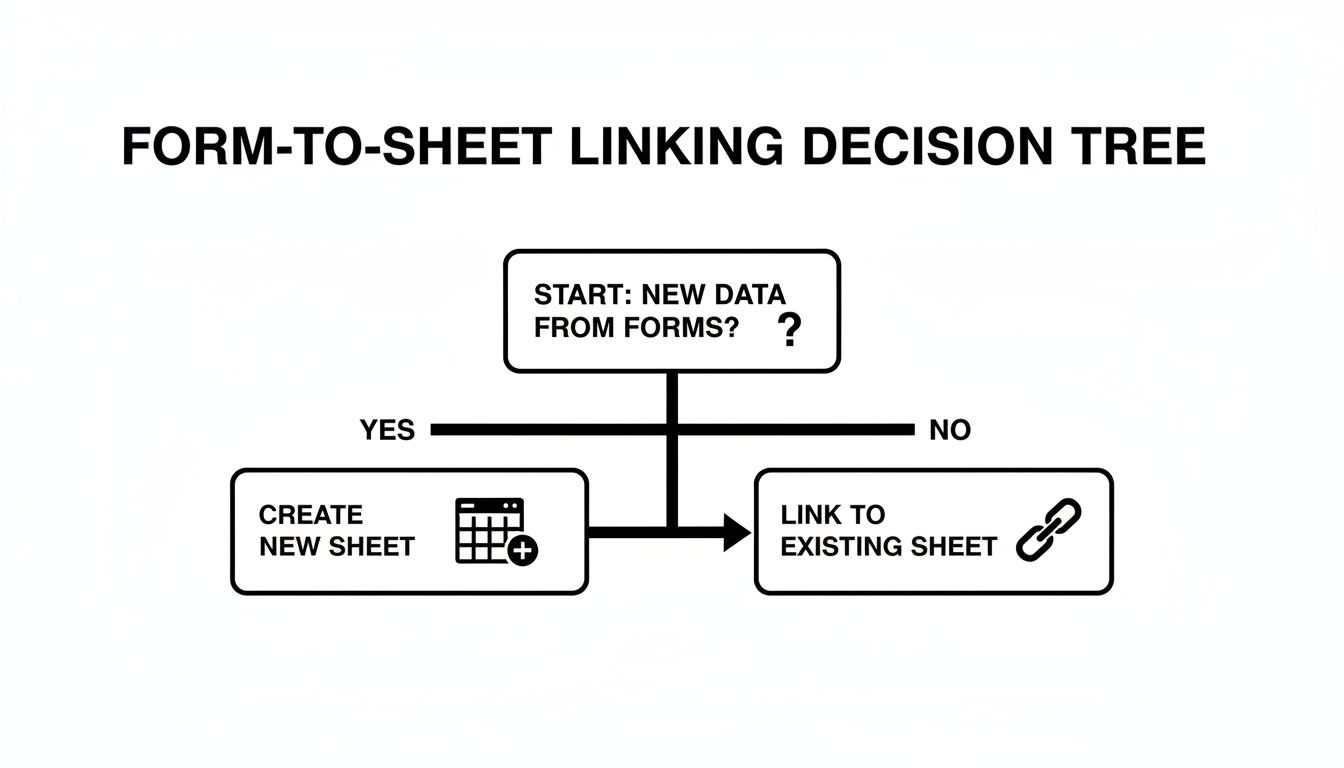
You're either starting fresh with a brand-new spreadsheet or consolidating your new data into an existing one. It's that straightforward.
Choosing Your Automation Tool
The market for these tools is packed, but a few key players handle the bulk of these form-to-sheet connections. Each has its strengths, so the "best" one really depends on what you need, how tech-savvy you are, and your budget.
When you're deciding which tool to use, it helps to see them side-by-side. Here’s a quick breakdown of the most popular options for getting your form data into Google Sheets.
Comparing Form Integration Platforms
| Platform | Best For | Key Feature | Pricing Model |
|---|---|---|---|
| Zapier | Beginners and broad app support | The "Zap" editor is incredibly simple for trigger-action workflows. | Freemium with tiered plans based on tasks and features. |
| Make (Integromat) | Complex, multi-step automations | Visual canvas for building intricate scenarios with branching logic. | Freemium with tiers based on operations and data transfer. |
| LeadSavvy Pro | Marketers using Facebook Lead Ads | A purpose-built, streamlined connection for Facebook to Sheets. | Subscription-based with plans for different lead volumes. |
Each of these platforms can get the job done, but the experience and cost will vary. For simple, one-off connections, Zapier is often the go-to. For anything more complex, Make provides a ton of power. And for specialized tasks like handling Facebook leads, a dedicated tool is often the most efficient route.
Here’s a closer look at what makes each one tick:
-
Zapier: This is usually the first stop for most people. It works on a simple "trigger and action" model. For example: "When a new lead comes from Facebook (the trigger), create a new row in Google Sheets (the action)." With thousands of supported apps, it's incredibly versatile.
-
Make/Integromat: This platform is for the visual thinkers who need more firepower. If you need to manipulate data, add if/then logic, or trigger multiple actions from one submission, Make gives you a powerful canvas to build out those sophisticated workflows.
-
LeadSavvy Pro: Sometimes, a specialized tool is just plain faster. For businesses focused on social media leads, a dedicated platform cuts out the unnecessary steps. Our guide on the Facebook Lead Ads to Google Sheets integration shows just how much a purpose-built solution can simplify this common marketing task.
The need for these tools is massive. Google Sheets has over 900 million monthly active users, and the broader Google Workspace ecosystem serves over 3 billion people. That's a staggering amount of data that needs to get from point A to point B, and integration platforms are the essential plumbing that makes it all work.
A Practical Scenario: Facebook Lead Ads
Let's say you're running a Facebook campaign for a local gym offering a free one-week trial. Manually downloading a CSV of new leads every few hours is a nightmare. It’s slow, tedious, and by the time your sales team finally calls, that "hot" lead has already gone cold.
With an integration platform, you set up a workflow once. From then on, every single lead's information—name, email, phone number—is instantly sent to a Google Sheet the moment they hit submit.
Real-World Impact: Your sales team can get a real-time notification (another easy action to add) and call a prospect within minutes of them showing interest. This simple automation can dramatically boost your conversion rates, turning a clunky data collection process into a well-oiled lead generation machine.
Custom Automation with Google Apps Script
While integration platforms are great for connecting different apps, what happens when you need to do something really specific they don't support? That's where Google Apps Script comes into play. It’s a powerful, cloud-based scripting language built right into the Google ecosystem that lets you create completely custom automations.
Think of it as the ultimate power-up for your Google Sheets. Instead of just passively receiving data from your forms into Google Sheets, you can build a script that springs into action the moment a new submission arrives. This opens the door to creating sophisticated workflows without paying a dime for a premium automation tool.
For instance, you could write a script that does way more than just log an entry. It could instantly perform calculations on the new data, reformat a phone number into a standard E.164 format, or even send a highly personalized confirmation email directly from your own Gmail account.
Key Takeaway: Google Apps Script is your go-to solution for unique business logic. When you need to do something very specific with your form data—like cross-referencing it with another sheet or creating a calendar event—Apps Script gives you the control to build it yourself, for free.
Getting Started with a Simple Script
The idea of scripting might sound a little intimidating, but it's more accessible than you’d think. You can jump into the script editor directly from your Google Sheet by navigating to Extensions > Apps Script. From there, you can start writing code that directly interacts with your spreadsheet.
One of the most practical ways to use it is by setting up a trigger. An on form submit trigger is a specific event listener that automatically runs your script the instant a new response from your linked Google Form hits the sheet. This is the secret to real-time, custom data processing.
Imagine you're collecting customer feedback. Your script could trigger on submission and perform several actions all at once:
- Data Validation: It can check if a required field, like an order number, is in the correct format. If not, it could flag the entry for review.
- Conditional Notifications: If a customer leaves a rating of less than 3 stars, the script could automatically email your support team with the subject line: "URGENT: Poor Feedback Received."
- Data Transformation: The script can take the submitted data, clean it up, and copy it to another tab in a different layout, prepping it for a dashboard or a report.
Expanding Your Automation Capabilities
Once you get the hang of the basics, you can build some incredibly robust systems. These custom scripts can evolve into a full-fledged backend for your business operations.
It's not uncommon for businesses to build entire workflows this way. Many have even created a simple but effective Google Sheets CRM using the power of Apps Script to manage customer interactions right inside their spreadsheets.
The true benefit here is total flexibility. You aren't boxed in by the features of a third-party service. If you can define the logic, you can probably build it with Apps Script, creating a solution perfectly tailored to your needs. This makes it an invaluable skill for anyone serious about automating their data processes.
Best Practices for Managing Your Form Data in Sheets
Getting your forms to Google Sheets is a great first step, but the real work starts once the data begins flooding in. Without a smart strategy, your once-pristine spreadsheet can quickly devolve into a chaotic mess that’s nearly impossible to make sense of.
The absolute number one rule is to protect your raw data sheet. Think of the tab receiving your form submissions as a sacred, read-only archive. Never, ever manually edit, sort, or reformat the data there. Messing with this tab can confuse the connection, causing new submissions to land in the wrong columns or, worse, breaking the sync entirely.
Key Takeaway: Your raw data tab is the single source of truth. Build everything else—your reports, dashboards, and analyses—in separate tabs, pulling data from this pristine source with formulas. This preserves the integrity of your information and keeps your automation running smoothly.
Isolate Your Analysis from Raw Data
To work with your form submissions without risking your data connection, just create new tabs within the same spreadsheet. From there, you can pull in the data from your raw response sheet and manipulate it to your heart's content.
This is where spreadsheet formulas become your secret weapon.
- QUERY: This is the absolute powerhouse of Google Sheets. You can use it to cherry-pick specific columns, filter rows based on conditions (like only showing leads from the last 7 days), and sort the data any way you like.
- FILTER: A simpler, more direct alternative to QUERY, the FILTER function lets you pull a subset of your data based on criteria you set.
- IMPORTRANGE: Need to get this data into a completely different spreadsheet? This function lets you import it dynamically, so it stays up-to-date.
By using separate tabs, you create dedicated workspaces for different jobs—one tab for a sales dashboard, another for weekly reports, and a third for sifting through customer feedback. For a deeper dive, check out our guide on data management best practices at https://leadsavvy.pro/post/data-management-best-practices/.
Plan for Scale and Keep Your Data Clean
As you get more and more form submissions, you have to think about keeping your data clean and your spreadsheet from grinding to a halt. Data validation is a fantastic tool for this. You can set rules on certain columns to make sure entries are in the right format—like requiring a valid email address or forcing a column to only accept numbers.
Also, be mindful of the technical limits. Google Sheets can handle up to 10 million cells per spreadsheet. That sounds like a lot, but high-volume forms can get you there faster than you think. Teams that deal with a constant stream of submissions often have to spread their data across multiple Sheets or pipe it into a more heavy-duty platform like BigQuery to avoid performance bottlenecks.
Clean, organized form data isn't just for operations—it's a goldmine for your marketing team. One of the most powerful things you can do with it is drive better personalization in email marketing. A well-managed dataset in Sheets makes segmenting your audience and tailoring your messaging a breeze, which almost always leads to higher engagement and more conversions.
Got Questions About Your Forms and Sheets?
Even when everything seems to be running smoothly, a few common questions always pop up when you're syncing forms with Google Sheets. Let's tackle them head-on so you can keep your data flowing without any hiccups.
Can I Connect One Form to Multiple Google Sheets?
The short answer is no, not directly. The built-in Google Forms connection is strictly a one-to-one deal. One form sends data to one specific tab in one spreadsheet. This is actually a good thing—it keeps your raw data clean and creates a single source of truth.
But what if you need that data in multiple places? There’s a fantastic workaround.
Have your form feed into a primary "master" spreadsheet. Then, in any other Sheet where you need that info, just use the IMPORTRANGE function to pull the data across.
This is the method I always recommend. It keeps your original submissions completely safe and untouched. Your other sheets are just "reading" the data, so you never have to worry about someone accidentally deleting or messing up your primary source.
If you have more complex needs, like wanting to send entries to different sheets based on a specific answer, you'll want to look at an integration tool or a custom Google Apps Script.
What Happens If I Edit Headers in My Linked Google Sheet?
Oh, this is a classic mistake, and it almost always causes problems. When a new submission comes in, Google Forms looks for columns with headers that exactly match the questions on your form.
If you've renamed a header, Forms won't find the column it's looking for. What does it do? It panics and creates a brand-new column with the original question as the header, dumping the new data there. You’ll end up with duplicate columns and a disorganized mess that’s a real pain to clean up.
The golden rule is simple: never, ever edit the tab that receives your raw form data. If you need to analyze the information or give columns different names, just create a new tab. Use simple formulas to pull the data over from the original response sheet, and then you can rename and format it however you like.
How Do I Stop Form Submissions from Going to My Sheet?
You've got a couple of options here, depending on if you want to hit the pause button or cut ties for good.
-
Temporarily Pause Submissions: The easiest way is right inside your Google Form. Go to the "Responses" tab and look for the "Accepting responses" toggle. Flip that off. People can still see your form, but they won't be able to submit it until you turn it back on.
-
Permanently Unlink the Sheet: To completely sever the connection, head to the "Responses" tab, click the three-dot menu icon, and select "Unlink form." Just be aware, this action is permanent for that specific spreadsheet. The form will stop sending data immediately, but you can always link it to a brand-new sheet later on if you need to.
Stop wasting time downloading CSV files from Facebook. LeadSavvy Pro instantly sends your new leads directly to a Google Sheet or CRM the moment they come in.