How to Export Data from Facebook A Practical Business Guide
Getting your data out of Facebook depends entirely on what you're trying to do. For lead generation, you can always go the manual route and download a CSV file from the Meta Business Suite. But let's be honest, the most efficient way—the one that actually makes you money—is using an automated tool to sync that lead info directly to a CRM or even a simple Google Sheet. It’s all about fast follow-up.
Why Exporting Facebook Data Is A Business Necessity
Knowing how to export your Facebook data is one thing. But truly understanding why it's so critical is what separates a killer campaign from a complete waste of ad spend.
This isn't just some boring admin task you have to check off your list. Exporting your data is how you turn raw information from a lead form into real business intelligence that actually fuels your growth.
It’s how you get a deeper look into what your customers actually want, refine your ad targeting with real-world feedback, and drastically shorten your sales cycle. As long as those leads are just sitting inside Facebook's platform, they're completely invisible to your sales team and your follow-up sequences.
The True Cost of a Slow Response
Think of your Facebook leads as a rapidly melting ice cube. Every hour that ticks by after someone submits their info, their interest—and their value to your business—fades away.
That initial spark that made them fill out your form gets buried under a mountain of other distractions. When you're stuck doing manual exports, maybe once a day if you're lucky, you're creating a massive, costly delay.
This lag means your competitor is probably already on the phone with that prospect while your lead data is still sitting in Facebook, waiting for you to download it. It’s more than a missed opportunity; it’s lost revenue and a terrible first impression for your brand.
It all boils down to one thing: speed to lead is everything. The faster you can get that lead from Facebook into your sales pipeline, the higher your conversion rates will be. A smart, efficient export process is the first, most important step to making your lead gen profitable.
A Real-World Scenario
Let me give you a classic example. A local home services company was running Facebook Lead Ads to get quotes for kitchen remodels. Every evening, their marketing manager would log in and download a CSV of the day's new leads.
That meant a homeowner who filled out a form at 9 AM wouldn't get a call until the next business day—almost a 24-hour delay.
They finally switched to an automated system that pushed new leads directly into their CRM the second they came in. Their team could now follow up in minutes, not days. The result? They slashed their response time by over 90% and saw a huge jump in booked appointments. Their lead generation went from a passive data-collection chore to an active, real-time sales machine.
With its massive user base, Facebook is an incredible platform for finding new customers. As of Q2 2025, it's sitting at around 3.07 billion monthly active users. The real challenge isn't just reaching them; it's efficiently managing the leads you capture. This is exactly where automated solutions become a game-changer, letting you sync leads instantly to tools like Google Sheets or your CRM. You can find more on the latest Facebook usage data to see just how big the opportunity is.
Even though automation is the ultimate goal for anyone serious about marketing, you still need to know your way around a manual export. It’s a foundational skill. Knowing how to pull data yourself helps you understand exactly what’s available and gives you a solid backup plan if your automated systems ever hit a snag.
Let's walk through the three main ways you’ll be pulling data directly from Meta’s platforms.
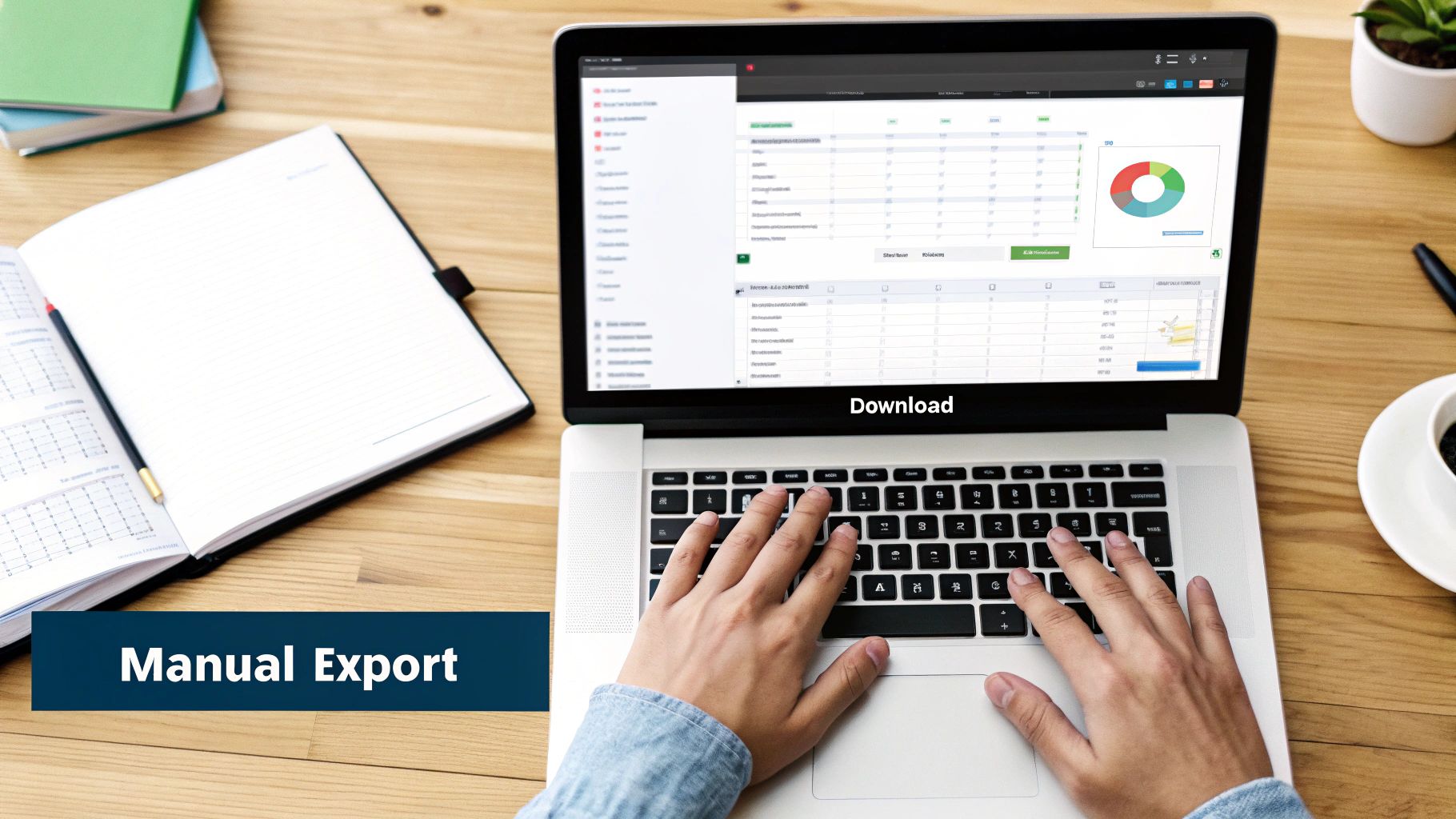
Think of these dashboards as your command center, offering a detailed look at everything from lead contact info to granular ad performance metrics.
Exporting New Leads from Facebook Lead Ads
This is probably the most common—and urgent—manual task for anyone running lead gen campaigns. When someone fills out your lead form, their info (name, email, phone number) gets stored inside your Facebook Page's Business Suite. You need to get it out, fast.
To grab these leads, you'll head over to the Meta Business Suite and find the Leads Center. From there, you can filter by a specific form and date range to see all the submissions. The "Download" button is what you're looking for. It'll give you a CSV file you can actually work with.
For example, a real estate agent runs a weekend campaign for a new listing. On Monday morning, they log in, navigate to the Leads Center, and download all the new leads from that specific form. Now they have a clean CSV to upload into their email marketing tool to send out property details.
Pulling Reports from Ads Manager
The Leads Center gives you who—the actual contact information. Ads Manager, on the other hand, tells you how. This is where you dig into performance data like reach, cost per result, click-through rate, and ROAS.
Let’s be honest, the Ads Manager reporting interface can be a real pain to share with clients or team members who don’t have access. That’s why exporting is so critical. You can pick specific campaigns or ads, customize the columns to show only the metrics that matter, and export the whole thing.
- Client Reporting: A digital marketing agency might pull weekly performance data into a CSV. From there, they can drop it into Google Sheets to build custom charts and pivot tables that actually make sense for their client presentations.
- Internal Analysis: A marketing manager might export data to compare five different ad creatives. By pulling metrics like CTR and Cost Per Click, they can see exactly which images or headlines are hitting the mark with their audience.
If you want a deeper dive into this process, check out our guide on how to download leads from Facebook Ad Manager, which gets into some of the finer points of the Ads Manager interface.
Accessing Your General Page Data
Finally, there’s the big one: the "Download Your Information" tool. This isn't just for business data; it's a massive feature that lets any Facebook user download a copy of nearly everything they’ve ever done on the platform.
For a business Page, this is your archival tool. You can download all your posts, photos, videos, and general Page info. You won't be doing this daily, but it's incredibly useful for record-keeping or if you ever need to migrate your content. For specific things like images, a dedicated tool like a Facebook Photo Exporter can make life a lot easier.
Choosing Your Manual Facebook Export Method
Not sure which method to use? This table breaks it down to help you pick the right tool for the job.
| Export Method | Primary Use | Type Of Data | Real-World Scenario |
|---|---|---|---|
| Leads Center | Contacting new prospects | Lead contact info (name, email, etc.) | A gym owner downloading leads from a "Free Trial" campaign to call them. |
| Ads Manager | Analyzing campaign performance | Ad metrics (CTR, CPC, Reach, etc.) | An e-commerce brand comparing the performance of different ad creatives. |
| Download Your Info | Archiving Page content | Posts, photos, videos, Page info | A business creating a backup of their entire Facebook Page history. |
Each of these manual exports serves a distinct purpose, from immediate lead follow-up to long-term performance analysis and data backup.
Key Takeaway: The manual method you choose depends entirely on your goal. Need to contact new prospects? Use the Leads Center. Need to analyze campaign performance? Use Ads Manager. Need to archive your Page's history? Use the Download Your Information tool.
The biggest issue with all of these manual methods? They are just a snapshot in time. The data is already old the second you download it. A hot new lead could submit their info 5 seconds after you export your spreadsheet, and you wouldn't know.
This time lag is the single biggest drawback and the main reason smart businesses eventually move to automated solutions to stay competitive.
Moving Beyond CSVs with Export Automation
Knowing how to manually download your leads from Facebook is a good skill to have in your back pocket. But relying on it? That’s like choosing to send a letter when you could just make a phone call. It gets the job done, eventually, but it's slow, clumsy, and puts you way behind the competition.
The real cost of sticking with manual CSV downloads isn't just the time you waste—it's the sales you lose.
Every time you wait to perform a manual download, a gap opens up. A hot lead that comes in at 9:05 AM might not even get seen until you run your export at 5:00 PM. By then, their initial interest has gone cold. That time gap is exactly where deals die.
Plus, manual work is a magnet for human error. A forgotten download, a misplaced file, or a simple copy-paste mistake can cause a valuable lead to fall through the cracks, never to be seen again. The whole process is reactive, forcing your team to work with old news.
The Power of Real-Time Automation
Automation completely flips the script. Instead of you pulling data from Facebook, automation pushes it directly where you need it, the second it arrives. This isn't just a small tweak; it’s a total game-changer for your lead flow.
This instant transfer happens thanks to tech like APIs (Application Programming Interfaces) and webhooks. Think of an API as a translator that lets two different software systems talk to each other. A webhook is even more direct—it’s like an instant alert that sends data from one app to another as soon as something happens, like a new lead signing up.
The benefits are immediate and obvious:
- Instant Lead Delivery: Your sales team gets notified the moment a lead comes in, letting them follow up within minutes when the prospect is most engaged.
- Zero Errors: Automated syncing kills the risk of manual data entry mistakes. Your CRM or spreadsheet stays clean and accurate.
- Boosted Efficiency: Your team can finally stop wasting time on tedious admin tasks and focus on what they do best—closing deals.
By automating your Facebook data export, you turn your lead generation from a passive data collection chore into an active, real-time sales engine. Speed isn't just a nice-to-have; it's the #1 driver of conversion.
Before and After Automation: A Real-World Scenario
Imagine a marketing manager, Sarah. Every single morning, she spends an hour downloading leads from three different Facebook campaigns into separate CSVs. Then she has to clean them up, merge them into one master spreadsheet, and manually assign them to her sales team. It's a soul-crushing, error-prone start to her day.
Now, picture Sarah after setting up an automated solution. A new lead fills out a form on Facebook. Instantly, that lead's info pops up as a new row in her team's shared Google Sheet. A notification automatically pings the salesperson on duty. Before Sarah has even finished her morning coffee, that lead has already been contacted.
This is exactly what an integrated tool can do, as you can see right on the LeadSavvy Pro homepage.
The interface makes the value crystal clear: a direct, no-fuss pipeline between your Facebook leads and wherever you need them to go, cutting out the manual middleman for good.
This one change frees Sarah from hours of weekly data entry, letting her focus on high-value work like analyzing campaign performance and improving her strategy. For more details on this specific setup, check out our guide on connecting Facebook leads directly to Google Sheets.
The sheer volume of potential leads on Facebook makes this kind of efficiency non-negotiable. The platform drives 39% of social referral traffic to news and media sites. And with over 1.8 billion people using Facebook Groups every month, you're looking at a massive pool of engaged prospects. Manual downloads simply can't keep up. According to one study, you can see more Facebook statistics that highlight the scale of the opportunity. Moving to an automated export system is the only way to capitalize on it.
Setting Up Automated Facebook Exports in Minutes
Ditching manual CSV downloads doesn't mean you need a computer science degree or some overly complicated technical setup. Seriously. With the right tool, you can build a seamless, automated bridge between your Facebook Lead Ads and your sales tools in just a few minutes. This isn't about learning to code; it’s about clicking a few buttons to get your time back and act on leads while they're still hot.
Let's walk through a typical setup using a platform like LeadSavvy Pro, which is built specifically to make this process dead simple. The goal here is to go from manual drudgery to automated efficiency without any friction.
Connecting Your Facebook Account
First things first, you need to give the platform permission to see your Facebook Pages and lead forms. When you sign up for a tool like LeadSavvy Pro, you'll see a prompt to connect your Facebook account. This is a secure authorization process—think of it like logging into a new app with your Google or Apple ID. It’s a standard, safe procedure that grants read-only access to the necessary info.
You'll just click "Connect with Facebook," and a pop-up will ask you to confirm which business assets the tool can access. It's super important to select the correct Facebook Business Page where your lead ads are running. This one-time handshake is all it takes to link your campaigns to your new automation engine.
Selecting Your Lead Form and Destination
Once your account is connected, the real magic happens. The platform will automatically pull in a list of all the active lead forms tied to your Page. This is where you shift from setup to strategy, deciding exactly where you want your valuable lead data to flow.
The interface is designed for clarity, as you can see in this example from LeadSavvy Pro.
This dashboard view simplifies the whole process, showing you a clear line from your Facebook form to its destination.
You just pick the specific lead form you want to automate from a dropdown menu. No need to hunt for form IDs or campaign names. Next, you choose your destination. This could be:
- A Google Sheet: Perfect for teams that want a simple, centralized database of all incoming leads that everyone can access in real-time.
- Your CRM: For more established sales processes, sending leads directly into a CRM like HubSpot or Salesforce is the ideal workflow.
- Email Notifications: You can also set up instant email alerts to be sent to you or your sales team the moment a new lead arrives.
The most powerful approach is often a combination. For instance, you can sync a new lead to a Google Sheet for your marketing team's records and send an immediate email notification to the sales rep on duty. This creates redundancy and ensures no lead is ever missed.
Finalizing Your Automation Workflow
After choosing your form and destination, you'll map the fields. This just means telling the system which column in your Google Sheet should get the "email" from your Facebook form, which gets the "name," and so on. Most tools make this incredibly intuitive with a simple drag-and-drop or dropdown interface.
With the fields mapped, you hit "Save" or "Activate," and that’s it. Your automation is live. From this moment on, every single person who fills out that specific Facebook lead form will have their data instantly and automatically sent to your chosen destination. You've just built a hands-free data pipeline in under five minutes.
This process completely eliminates the need for daily manual downloads, forever. You're no longer exporting old, stale data; you're getting a live stream of prospects, empowering you to respond while their interest is at its peak. That gives you a huge edge over slower competitors.
Best Practices for Managing Your Exported Data
Getting your data out of Facebook is a great start, but let's be honest—it's only half the battle. A raw CSV file sitting in your downloads folder isn't going to close any deals. What you do next is what turns that data into actual revenue.
Handling this information the right way is more than just being efficient. It’s about being responsible with people's data and strategic with your follow-up.
First things first: data privacy is non-negotiable. While this isn't legal advice, you absolutely must handle contact information respectfully, in line with regulations like GDPR and CCPA. Be transparent about why you're collecting data and make sure it's stored securely.
A solid, automated workflow is the foundation for managing your data effectively and responsibly.
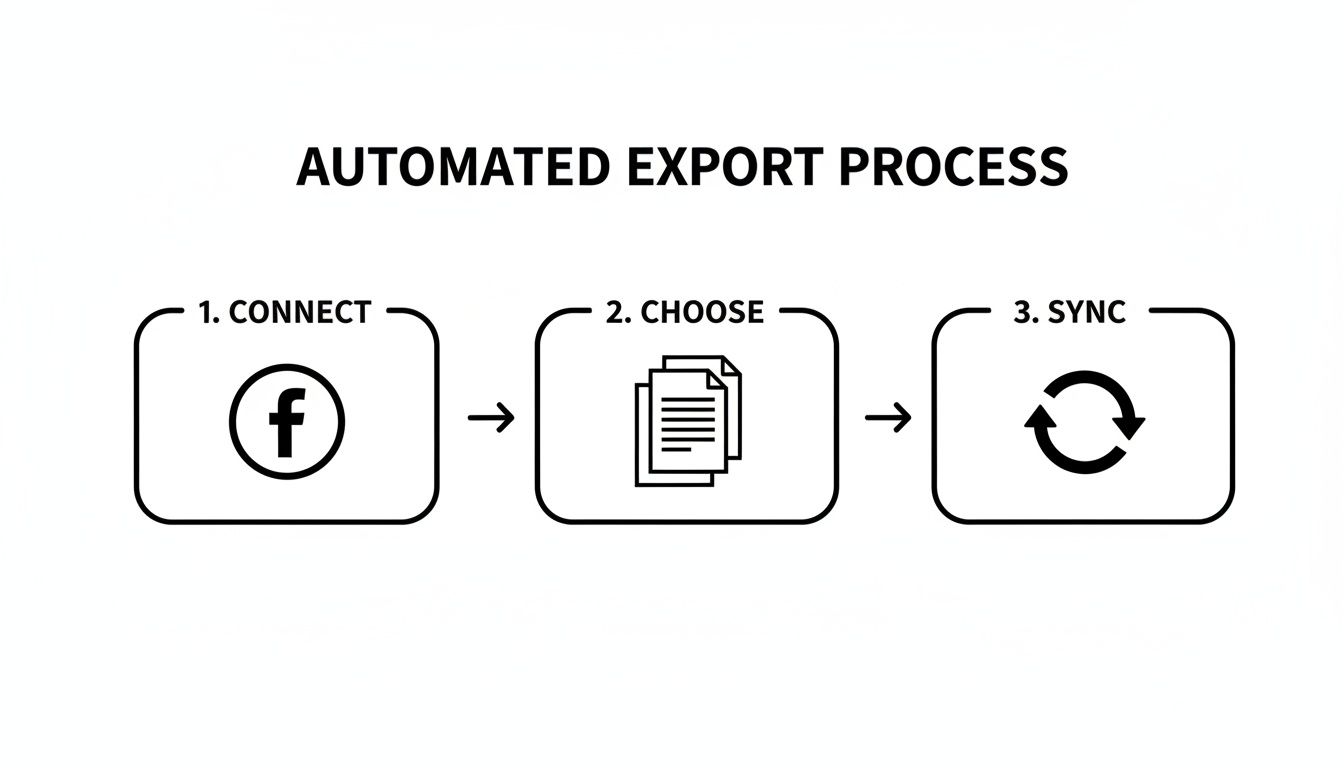
This diagram nails the ideal process: connect your source (Facebook), select the right information, and sync it to where it needs to go. This creates a clean, reliable pipeline for you to work from.
Activate Your Leads Immediately
If you take only one thing away from this guide, let it be this: speed is everything. A new lead’s interest fades incredibly fast. Your goal should be to engage them within minutes, not hours.
When a new lead hits your Google Sheet or CRM, it needs to trigger an immediate action. For instance, a new row added to a Google Sheet can instantly kick off an email sequence using a tool like Zapier. The first email should be a simple "Hey, we got your request!" message. It confirms you received their info and keeps your brand top-of-mind while they're still hot.
Your exported data isn't an archive; it's a to-do list. The value of a lead drops by as much as 400% if you wait longer than five minutes to respond. An automated, instant follow-up is your biggest competitive advantage.
Segment and Personalize Your Nurturing
Let's be real—not all leads are the same. Someone who downloaded a guide on "kitchen design trends" is in a very different headspace than someone who filled out a form for a "free kitchen remodel quote." Treating them identically is a surefire way to get ignored.
Use the data you have to segment your new contacts. It’s easier than it sounds.
- By Ad Campaign: Create separate lists based on the ad they came from. This lets you tailor your follow-up to match the exact promise you made in the ad.
- By Form Answers: Did your form ask custom questions like, "What's your project timeline?" Use those answers! Prioritize the hot leads who are ready to buy now.
For example, a lead from a "remodel quote" ad should probably trigger an immediate alert for your sales team to call them. Meanwhile, the person who downloaded the "design guide" can be placed into a longer-term email sequence that builds trust over time.
Maintain Excellent Data Hygiene
Your CRM or lead database is only as good as the information inside it. Outdated or messy data leads to bounced emails, wasted time, and a frustrated sales team.
Make it a habit to clean your lists. Remove duplicates, fix typos, and update contact info. If you're using Google Sheets, simple add-ons or built-in functions can help you find and merge duplicate entries. A clean database means your marketing is hitting its mark and your reports are actually accurate.
Just as important is protecting that clean data. You can learn more about strategies to prevent data loss to keep your hard-earned leads safe and secure.
By putting these practices into play, you’ll transform the way you export data from Facebook. It stops being a chore and becomes a powerful engine for growing your business.
Got Questions About Exporting Facebook Data?
Even with a solid plan, you're bound to run into a few snags when exporting data from Facebook. It’s frustrating when a small hiccup holds you up, especially with hot leads waiting in the wings. Let's walk through some of the most common questions and roadblocks people hit.
Getting these details right doesn't just solve the problem in front of you—it helps you understand why a good system, particularly an automated one, is so crucial for managing leads effectively.
How Often Should I Export My Facebook Leads?
If you're sticking to the manual download routine, you need to be in there exporting leads at least once a day. Seriously. Any less than that, and you're letting high-intent prospects go completely cold before you ever say hello. Their interest is red-hot the moment they hit "submit," so a daily check is the absolute bare minimum.
But let's be real—the best practice is to make this question irrelevant with automation. A lead's value plummets after the first hour. An automated tool like LeadSavvy Pro zaps new leads straight to your CRM or Google Sheet in real-time, letting you engage instantly and send your conversion rates through the roof.
Stop thinking about how often you should download. Start thinking about how quickly you must respond. The answer is always "right now," and only automation makes that happen.
Can I Export Data From a Facebook Page I Don’t Own?
Nope, not a chance. You can only export data from Facebook Pages and Ad Accounts where you have the right permissions, like an admin or analyst role. Facebook’s privacy rules are airtight to prevent anyone from grabbing data they shouldn't have, and this is a core piece of their security.
To get your hands on sensitive lead form data, you absolutely must be an admin of the connected Page. This isn't just some technicality; it's a critical security measure protecting both the user who gave you their info and your business. If you need access, you'll have to get a current Page admin to grant you the right permissions inside Meta Business Suite.
What Is the Difference Between Ads Manager and Lead Ads Data?
This trips a lot of people up, but the difference is actually pretty simple. Think of it as the "how" versus the "who."
-
Ads Manager Data: This is all about your campaign performance metrics. It tells you how your ads are doing with numbers like reach, impressions, click-through rate (CTR), and cost per lead. You use this info to analyze and optimize your campaigns.
-
Lead Ads Data: This is the contact information for the actual people who filled out your forms. It tells you who your new leads are by giving you their names, emails, phone numbers, and any other custom answers you asked for.
You need both. Ads Manager reports show if your advertising is working, while your Lead Ads data gives your sales team the actual people they need to call.
My Exported CSV Is Empty or Missing Leads. What’s Wrong?
This is easily one of the most maddening parts of manual downloads. You open a fresh CSV, and it’s either empty or missing the leads you know just came in. Don't panic—it's usually one of a few things.
First, double-check the date range you picked for the export. It is incredibly easy to accidentally select "Last 7 Days" when you really meant "Today." Happens all the time. Next, make sure your Page permissions haven't been changed or downgraded recently.
If you've checked both and you're still coming up empty, it might just be a temporary glitch in Meta Business Suite. Honestly, that unreliability is another huge reason to switch to automation. Tools that connect directly via API bypass the clunky user interface, creating a much more stable and dependable pipeline for your data so you never miss a lead.
Stop letting valuable leads slip through the cracks. With LeadSavvy Pro, you can automate your entire lead export process in minutes, sending new prospects directly to your Google Sheet or CRM in real-time. Start your free plan today and see how effortless lead management can be.