Forward Email to Text for Instant Alerts
You can actually forward an email straight to a text message. It’s a simple trick that works by sending an email from your normal inbox to a special address tied to your phone number and carrier (like yournumber@vtext.com for Verizon).
This one move instantly turns an email into an SMS, landing it right on your phone. It's the secret sauce for creating powerful, automated alerts for the updates you absolutely cannot miss.
Why Forwarding Email to Text Is a Smarter Way to Work
Let's be real, our inboxes are a disaster zone. Critical updates get buried under a mountain of newsletters, promotions, and random company-wide announcements. If you’re only relying on email notifications, you're going to miss time-sensitive info that could make or break a deal, from a hot new sales lead to an urgent client request.
This is where forwarding key emails directly to your text messages comes in. It’s a simple but incredibly powerful solution for instant, can't-miss alerts.

The Power of Immediate Notifications
Imagine getting a text the second a new prospect from your latest ad campaign submits their info. Or picture an instant SMS alert popping up when your server monitoring system flags a critical issue. These aren't just hypotheticals; they're real-world scenarios where the immediacy of a text message gives you a massive advantage.
The numbers don't lie. SMS messages have a staggering 98% open rate, and most are read within just three minutes. Now, compare that to the average email open rate, which struggles to hit 20%. This difference isn't just a fun fact; it's a competitive edge.
This guide will show you exactly how to take back control of your notifications. We'll walk through several ways to forward email to text, so you can pick the one that fits your needs.
- Free Carrier Gateways: The quickest, no-cost method for getting basic alerts up and running.
- Email Client Filters: Perfect for setting up automatic forwarding rules right inside Gmail or Outlook.
- Powerful Automation Platforms: For when you're ready for advanced, custom workflows using tools like Zapier.
Bridging the Gap with Automation
What we're really talking about here is a form of workflow automation—building smart systems that handle repetitive tasks for you. Instead of obsessively checking your email for that one important message, you build a trigger-and-action sequence that does the work instantly.
This move doesn't just save you time. It dramatically cuts down your response time, which is everything in sales and customer support. If this concept is new to you, our guide on what is workflow automation is a great place to start.
By setting up an email-to-text system, you're not just getting notifications; you're building a more responsive, agile, and efficient operation. You're guaranteeing that high-priority information gets your immediate attention, every single time.
Using Carrier Gateways for Direct Email to SMS Forwarding
The absolute most direct way to get an email from your inbox to your phone as a text is by using something called a carrier's email-to-SMS gateway.
Think of it as a secret back door to your phone's messaging app. Every major mobile provider offers a special email address tied directly to your phone number. When you send an email to that address, their system catches it, translates it into a text message, and delivers it to your phone.
It's fast, completely free, and doesn't require any fancy third-party software. You're just using a built-in feature of the mobile network itself. This is the foundational technique for all the more advanced setups we'll dive into later.
Finding Your Carrier's Gateway Address
The key to this whole trick is knowing the correct gateway address for your specific mobile provider. Each carrier has its own unique domain for this service, but the format is almost always the same: your 10-digit phone number followed by the carrier's gateway domain.
Let’s say your number is 555-123-4567 and you’re on Verizon. Your SMS gateway address would be 5551234567@vtext.com. It’s really that simple. If you send an email to that address, it should pop up on your phone as a text message almost instantly.
Pro Tip: Before you start building complex automations, always send a quick test email to your own gateway address. Something like "Test 1" in the subject and "Does this work?" in the body is perfect. If it doesn’t arrive within a minute, double-check the phone number and gateway format.
Major US Carrier Email to SMS Gateway Addresses
To save you the headache of hunting down the right format, I've put together a quick reference guide for the most popular carriers in the United States. Just find your carrier and replace yournumber with your 10-digit phone number (no dashes or spaces).
| Carrier | SMS Gateway Address Format | MMS Gateway Address Format |
|---|---|---|
| AT&T | yournumber@txt.att.net |
yournumber@mms.att.net |
| Verizon | yournumber@vtext.com |
yournumber@vzwpix.com |
| T-Mobile | yournumber@tmomail.net |
yournumber@tmomail.net |
| Sprint | yournumber@messaging.sprintpcs.com |
yournumber@pm.sprint.com |
| UScellular | yournumber@email.uscc.net |
yournumber@mms.uscc.net |
| Cricket | yournumber@sms.cricketwireless.net |
yournumber@mms.cricketwireless.net |
You'll notice two different types of gateways: SMS (Short Message Service) and MMS (Multimedia Messaging Service). SMS is just for plain, simple text. MMS, on the other hand, can handle things like subject lines, images, and longer messages. For basic alerts, the SMS gateway is all you need.
Understanding the Limitations and Drawbacks
While these carrier gateways are fantastic for getting started, they aren't a perfect, one-size-fits-all solution. It's crucial to understand their weaknesses so you know when you need to reach for a more powerful tool.
The biggest hurdle is the character limit. A standard SMS message is capped at just 160 characters. If the email you're forwarding is longer than that, your carrier will likely chop it up into multiple text messages. This often results in a jumbled, out-of-order mess on your phone.
Formatting also gets lost in translation. Here's what you can expect:
- HTML emails get stripped down to raw, plain text. Forget about nice layouts.
- Images and attachments sent to an SMS gateway are typically ignored or may even cause the message to fail completely.
- The sender's info can look pretty clunky, often showing up as a long, cryptic email address instead of a clean contact name.
These drawbacks make gateways perfect for short, text-based alerts where the information is brief and to the point. A "New Lead Received" notification from a tool like LeadSavvy Pro or a "Server Offline" warning are ideal use cases. But if you need to forward detailed emails with formatting and attachments, you'll quickly hit the ceiling of what this free method can do.
Set Up Automated Alerts in Gmail and Outlook
Once you have your carrier’s email-to-SMS gateway address, the real magic happens with automation. Let's be honest, manually forwarding emails to your phone is a pain and completely defeats the purpose of getting instant alerts.
The good news is you can create a "set it and forget it" system using the powerful, built-in tools inside Gmail and Outlook. This turns your inbox from a passive folder into a proactive notification machine. By setting up specific filters (Gmail's term) or rules (what Outlook calls them), you're telling your email client exactly which messages are important enough to buzz your pocket.
If you're new to this, it might be helpful to review a general guide on how to automatically forward emails first. Getting the basics down will make creating these targeted alerts a breeze.
Crafting a Precise Filter in Gmail
Gmail’s filtering system is incredibly flexible, letting you zero in on what matters. The goal here is to be hyper-specific. You don't want a text for every email—just the critical ones.
Think about what truly demands your immediate attention. Is it an email from a VIP client? A message with "urgent" in the subject line? A down-time notification from your server?
Let's walk through a real-world scenario. Say you're running Facebook ads and want an instant text the second you get a new lead. You know those emails always come from notifications@facebook.com and contain "New Lead" in the subject.
Here’s how you'd build that filter:
- From:
notifications@facebook.com - Subject:
"New Lead"(using quotes ensures an exact match) - Action: Forward it to
yournumber@vtext.com
This filter is targeted enough to ignore every other notification from Facebook. It only fires for the emails that directly impact your bottom line, giving you a massive head start on your follow-up. For businesses where lead response time is everything, this kind of automation is a game-changer. You can find more tips in our guide on how to speed up your lead processing with instant email notifications.
The Initial Forwarding Address Setup in Gmail
Before you can set up a forwarding filter, Gmail needs to know you actually own the phone number. This is a one-time security step. You have to add your SMS gateway address as an approved forwarding destination first.
You'll find this setting under Settings > See all settings > Forwarding and POP/IMAP. From there, just click "Add a forwarding address" and pop in your carrier's gateway email, like 5551234567@tmomail.net.
Gmail will immediately send a confirmation code to that address, which will show up on your phone as a text. Just enter that code back into Gmail, and you're verified.
Once you've done this, your SMS address becomes available as an action when you create a new filter, unlocking the power to forward email to text automatically.
Building an Effective Rule in Outlook
Outlook users, you're not left out. The platform has an equally powerful feature called "Rules." It’s the same concept as Gmail's filters, just with a different interface. You can find it by going to File > Manage Rules & Alerts.
The Rules Wizard walks you right through the process. You can define conditions with the same surgical precision as in Gmail. For example, a freelance designer might create a rule to get texted about new project inquiries.
- Condition 1: Apply this rule after the message arrives
- Condition 2: With specific words
"Project Inquiry"in the subject - Action: Forward it to
yournumber@txt.att.net
Creating a well-defined rule is the difference between getting useful, actionable alerts and being spammed by your own system. The key is to identify unique identifiers in the emails you want to forward—whether it's a sender's address, a keyword, or even a specific email header.
Pro Tips for Refining Your Filters and Rules
A sloppy filter can quickly become your worst enemy, flooding your phone with texts you don't need. The secret is to think defensively and add layers of specificity to your rules. It’s as much about what you exclude as what you include.
Consider these advanced strategies:
- Use Negative Keywords: Most email clients let you add "does not contain" conditions. For instance, you might want alerts for emails with "Invoice" but not if they also contain "Past Due."
- Filter by Recipient: If you're part of a team email alias, set up a rule that only forwards emails where you are in the "To:" field, not the "Cc:" field. This prioritizes messages sent directly to you.
- Combine Multiple Conditions: The most reliable filters use two or more criteria. An alert for an email containing "Server Alert" is good, but one that triggers for "Server Alert" AND comes from
monitoring@yourcompany.comis way better and kills false positives.
Going Pro with Zapier or Twilio Automation
Built-in email filters are a great first step, but they have their limits. When you need more muscle, reliability, and customization than a simple forward can provide, it's time to call in the big guns: third-party automation platforms.
Tools like Zapier and Twilio take you from a basic alert system to a professional-grade communication workflow. They completely bypass the clunky carrier gateways, giving you the power to send longer messages, use custom sender numbers, and plug directly into your other business software.
Why You’ll Outgrow Basic Filters
Let's be honest, carrier gateways are useful but fundamentally flawed. They're notorious for chopping up long messages into a jumbled, out-of-order mess and can't handle anything more complex than plain text. This is where advanced automation tools really shine.
With a platform like Zapier, you can build a multi-step workflow—they call it a "Zap"—that connects your email account to a dedicated SMS service like Twilio. This opens up a whole new world of functionality that standard email rules just can't touch.
This is about more than just forwarding an email; you're building a smart, scalable system. You're creating an automated process that can grow with your business and handle much more complex tasks down the road.
Let’s Build an Automated Workflow
Picture this common scenario: you want an instant text message the second an email with the subject "High-Priority Support Ticket" hits a specific folder in your inbox. A basic carrier gateway forward might cut off crucial details or fail entirely.
Instead, let's build a Zap to handle it properly.
- The Trigger: The Zap will keep an eye on your Gmail account for a "New Email" arriving in your "High-Priority" folder.
- The Filter (Optional but recommended): You can add a step to double-check that the subject line contains the exact phrase "High-Priority Support Ticket" before it does anything else.
- The Action: It then grabs the email content and sends a perfectly formatted SMS through Twilio, using a dedicated phone number that you control.
This setup guarantees the entire email body arrives in a single, easy-to-read text. Better yet, the text comes from a consistent, professional number—not some bizarre carrier gateway address.
The Big Wins: Zapier + Twilio Benefits
Using a dedicated automation stack to forward email to text gives you some serious advantages over the free methods. You're stepping up to professional features that turn a personal hack into a reliable business tool.
Here’s what you gain:
- No More Character Limits: Services like Twilio are built for this. They automatically handle long messages, ensuring they arrive as one seamless text on the recipient's phone. Fragmented alerts are a thing of the past.
- Custom Sender Numbers: Send texts from a dedicated virtual phone number. It looks far more professional and lets people save your number as a trusted contact.
- Real Delivery Tracking: Carrier gateways give you zero feedback. Twilio, on the other hand, provides delivery statuses so you know if a message was successfully delivered, failed, or is still on its way.
- Powerful Integrations: The real magic of Zapier is its ecosystem. You can connect email to thousands of other apps. For instance, after sending the text, you could add another step to post the alert in a Slack channel or create a new task in Asana. To achieve advanced automation for forwarding emails to text, explore seamless Zapier integration with your existing services.
This level of integration is a game-changer for sales and marketing teams. As we cover in our guide to automated SMS marketing for Facebook leads, connecting different platforms creates a much more powerful and effective follow-up process.
So, What’s the Cost?
While these tools are incredibly powerful, they aren't completely free. It's important to know what you're getting into so you can build a system that makes financial sense.
- Zapier: Works on a freemium model. The free plan is perfect for testing the waters but limits how many "Zaps" you can run and how often they check for new emails. Paid plans unlock more frequent checks and multi-step Zaps.
- Twilio: Uses a pay-as-you-go model. You pay a tiny fee (usually a fraction of a cent) for each SMS you send and a low monthly fee (around $1) to rent your virtual phone number.
For most small businesses, the total cost is surprisingly low—often just a few dollars a month for hundreds of critical alerts. When you factor in the value of faster response times to urgent issues or new leads, the small expense is easily justified. It’s a predictable, scalable way to manage your most important communications.
Nailing Your Email-to-Text Workflow: Best Practices
Setting up a system to forward email to text is a huge win for productivity. But without some smart management, your shiny new notification workflow can quickly turn into a source of noise, security risks, or even surprise costs.
Let's get one thing straight: text messages are not emails. It's critical to treat them with the right security mindset. SMS isn't inherently encrypted end-to-end, making it a terrible choice for sending sensitive data. You should never, ever forward emails containing financial details, passwords, personal ID numbers, or any confidential client info.
My rule of thumb is simple: if you wouldn't want it popping up on your phone's locked screen for anyone to see, don't send it via text.
Think Small: Optimize Your Emails for the Tiny Screen
An email that looks gorgeous on a desktop monitor will almost always be a train wreck when crammed into a plain text message. SMS gateways and most automation tools strip out all the pretty HTML formatting, so you have to design your source emails for pure clarity and speed.
- Lead with the Punchline: Get straight to the point. Ditch the long intros and start with "New Lead:" or "URGENT:". The most critical info has to be in the first few words.
- Keep It Short and Sweet: Try to keep your email templates under 160 characters. This is the magic number to prevent your alerts from being chopped into multiple texts that often arrive out of order.
- Use Simple Labels: Since you can't rely on bold text or fancy layouts, use clean text labels like "Name:", "Phone:", and "Source:". This makes the information scannable at a glance.
Optimizing your email templates this way ensures every text you get is immediately understandable and actionable—which is the whole reason you're setting this up.
This quick decision tree can help you figure out if a basic email filter is enough or if you need the muscle of an automation platform.
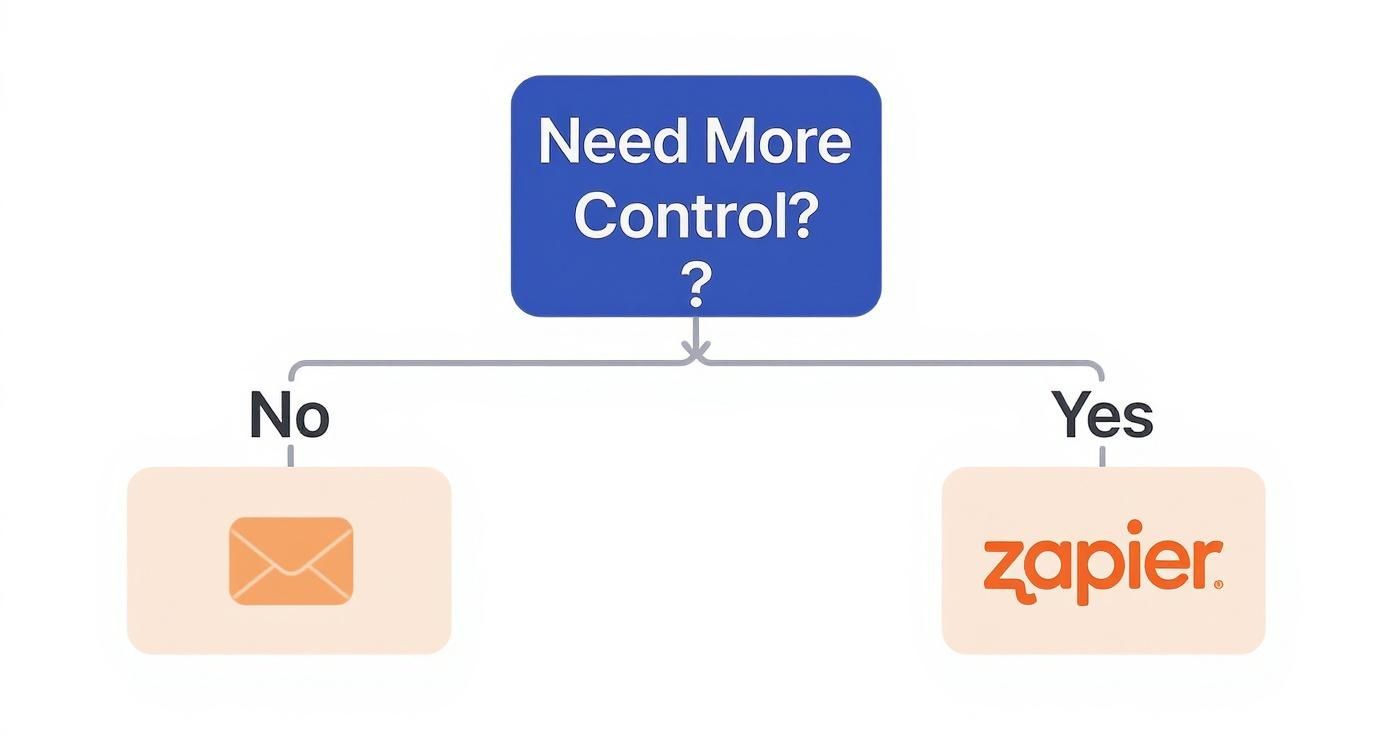
As you can see, if you need more control and customization, tools like Zapier are the way to go. For simpler needs, basic email forwarding will do the trick just fine.
Get Hyper-Specific with Filters to Manage Costs
When you're using paid services like Zapier or Twilio, every text has a small price tag. It might only be pennies, but those pennies add up fast if your filters are too broad. The key to keeping costs down is building filters so precise they only fire for genuinely business-critical events.
Let's say you're using LeadSavvy Pro to get your Facebook leads. You want an instant text for every new prospect, but you couldn't care less about the monthly reports or billing notifications that come from the same platform.
A rookie mistake is to just filter for emails from LeadSavvy Pro. A much smarter, multi-condition filter would look like this:
- From:
notifications@leadsavvy.pro - AND Subject contains:
"New Lead Submission" - AND does NOT contain:
"Monthly Summary"
This approach guarantees you only pay for alerts that directly help you make money. It's about maximizing value while keeping your operational costs lean. And the value is definitely there—studies show 73% of marketers see increased revenue from SMS, which boasts a jaw-dropping 98% open rate compared to just 20% for email. You can dig into more text marketing statistics that highlight its massive business impact.
Key Takeaway: The goal isn't to forward more emails; it's to forward the right emails. A successful workflow is all about precision, security, and cost-effectiveness. By being intentional about what you forward and how you format it, you'll create a powerful system that works for you, not against you.
Got Questions About Email-to-Text? Let's Clear Things Up.
Jumping into a new workflow always brings up a few questions. Setting up email-to-text forwarding is pretty straightforward, but a few common sticking points can trip people up. Let's run through the most frequent questions I hear.
How Reliable Is This, Really?
This is the big one. Will my text alerts actually show up every time? For the most part, yes. Carrier gateways are surprisingly reliable for sending simple, short notifications.
However, if we're talking about business-critical alerts—where a missed text could mean a lost sale—you'll want something more robust. This is where services like Twilio, connected through an automation tool, are a much safer bet. They provide delivery receipts, giving you peace of mind that your message actually made it.
Am I Going to Get Charged for These Texts?
A very fair question. The answer really depends on how you set it up.
If you stick with your carrier's free email-to-SMS gateway, you won't see any extra charges on your bill from the carrier for sending the message. But keep in mind, these incoming texts will count against your phone plan's messaging limits, just like any other SMS you'd normally receive.
On the other hand, if you go with a third-party service like Twilio, you'll pay a small, per-message fee. We're talking fractions of a cent per text, which is an incredibly affordable price for the added reliability and features you get.
Why is SMS so effective for business? It taps directly into how we all communicate now. The latest data shows that 95% of texts are read within just three minutes. That kind of speed makes it the undisputed champ for any update that's time-sensitive. You can see the full breakdown of 2025 texting and SMS marketing statistics to understand why customers prefer it.
Can I Stop My Phone from Blowing Up with My Own Alerts?
Absolutely—and you definitely should. If your phone is buzzing every two minutes, you’ve made your filters way too broad. The secret is to get extremely specific with your forwarding rules in Gmail or Outlook.
Here are a few tips I've learned for dialing in your alerts:
- Use Exact Phrases: Instead of just filtering for the word "Lead," use a precise phrase in quotes, like
"New Lead Submission". - Filter by Sender: This is non-negotiable. Always pair your keyword filters with a specific sender email address to kill false positives from other emails.
- Add Exclusions: Use "does not contain" rules to block emails that have words like "summary," "report," or "receipt," which might otherwise trigger your filter by mistake.
A well-tuned system only pings you for things that genuinely need your attention right now, turning it into a powerful tool instead of a noisy distraction.
Ready to stop missing high-priority leads? LeadSavvy Pro automates your lead capture from Facebook and sends instant email notifications that are perfect for plugging into these text alert systems. Never manually download a CSV again and get a jump on the competition. Start streamlining your lead management for free with LeadSavvy Pro today.