Fix Your Facebook Tracking Ads for Better Leads
If your Facebook ads feel like a total slot machine—sometimes you hit a small jackpot, but mostly you’re just feeding it cash—your creative probably isn't the problem. Your offer might not be the problem, either.
It's almost certainly your tracking.
A shocking number of advertisers are flying blind, running campaigns on incomplete or just plain wrong data. This mess has only gotten worse with recent privacy updates and the rise of ad blockers, creating huge gaps in what you can actually see. This broken data foundation is the number one reason for wasted ad spend.
When Facebook's algorithm can’t reliably see who’s converting, it simply can't do its job. It's a powerful machine, but it needs good fuel. Feed it bad data, and it starts showing your ads to the wrong people, leading to a flood of low-quality clicks and leads that go absolutely nowhere.
This isn’t just a little inefficient. It’s a surefire way to burn through your marketing budget with very little to show for it.
The Real Cost of Bad Data
Bad data doesn't just tank your current campaigns; it poisons your future ones, too. Without a clear picture of what’s actually working, you're just guessing. You might scale up a campaign that looks like a winner in Ads Manager, only to realize weeks later—after checking your CRM—that all the leads were junk.
Sound familiar? It’s a common and incredibly frustrating cycle.
The good news is that building a solid, layered tracking system is more achievable than you might think. By combining both browser-side tracking (like the Pixel) and server-side tracking (like the Conversions API), you can create a reliable data stream that becomes your single source of truth. If you're struggling with ad spend and want to dig deeper, this guide on optimizing Facebook ads for local businesses is a great place to start.
Let's not forget why this platform is so powerful in the first place: its massive scale and incredibly deep user data. As of 2024, Facebook boasts over 10 million global advertisers all competing for the attention of more than 3 billion monthly active users. This is what allows you to reach hyper-niche audiences with stunning precision.
This diagram shows how the Facebook Pixel acts as the bridge between your website and your ad campaigns. It’s the foundational piece that allows you to track conversions and build valuable audiences. Getting this connection right is the first, most critical step toward an ad strategy that stops wasting money and starts driving real results.
To really win with Facebook ads, you need a tracking setup that can actually handle today's messy reality of ad blockers, browser restrictions, and constant privacy updates. Just slapping the Facebook Pixel on your site and calling it a day is a recipe for disaster.
A truly resilient foundation is built on a two-pronged approach, combining the old-school browser-side tracking with modern server-side tracking. Think of it as a checks-and-balances system for your data.
The first piece of the puzzle is the classic Facebook Pixel. It's a little snippet of code that lives on your site, sending data back to Facebook directly from a user's web browser when they take an action. For years, this was the gold standard.
But the Pixel has some serious blind spots these days. Ad blockers and privacy-first browsers can stop it dead in its tracks, meaning you’re missing a huge chunk of data.
When that happens, your ad spend goes right down the drain.

As you can see, broken tracking leads directly to wasted money and campaigns that just can't get off the ground. This is where the second, more powerful layer comes into play.
The Power Of Server-Side Tracking With CAPI
The Conversions API (CAPI) is Facebook's answer to the Pixel's weaknesses. Instead of sending data from the user's browser, CAPI sends it straight from your website’s server to Facebook’s server.
This server-to-server connection is completely invisible to ad blockers and isn't affected by browser cookie policies, making it a far more reliable source of truth. You start capturing conversions the Pixel would have missed, giving Facebook's algorithm a much clearer picture of what's actually working.
Here’s a quick look at how they stack up.
Facebook Pixel vs Conversions API (CAPI)
| Feature | Facebook Pixel | Conversions API (CAPI) |
|---|---|---|
| Data Source | User's Web Browser | Your Website Server |
| Reliability | Lower (Blocked by ad blockers, iOS updates) | Higher (Unaffected by browser-side issues) |
| Data Captured | Can miss up to 30% of conversions | Captures events the Pixel misses |
| Setup Complexity | Easier (Simple code snippet) | More complex (Requires server-side setup) |
| Best For | Audience building, basic event tracking | Conversion accuracy, overcoming data loss |
Both are essential, but they serve different purposes. The Pixel is great for real-time signals, while CAPI is your source for rock-solid conversion data.
This robust setup is also crucial for more advanced tactics like remarketing with Facebook, where you need every last bit of data to re-engage people who've shown interest.
You can see the real-world impact of tracking in Facebook's own numbers. Their ad revenue exploded from $39.94 billion in 2017 to over $114 billion in 2021. But in 2022, it dipped slightly to $113.64 billion, right as privacy regulations and tracking limitations started hitting hard. Accurate data isn't just a "nice-to-have"—it's the engine of the entire platform.
Preventing Double Counting With Event Deduplication
Okay, so if you're running both the Pixel and CAPI, you've probably already spotted the big problem: what happens when both of them report the exact same lead?
Without a way to tell Facebook they’re the same event, you'll end up double-counting conversions. Your reports will be a mess, and the algorithm will optimize for the wrong things.
The solution is event deduplication.
It sounds technical, but the concept is simple. You just need to assign a unique ID to every conversion event and send that ID along with both the Pixel and CAPI signals. When Facebook gets two events with the same ID, it knows they're duplicates, keeps the first one it received, and simply ignores the second.
Here’s how it works in practice:
- A user submits your lead form.
- The Facebook Pixel fires instantly from their browser, sending a "Lead" event with
EventID: xyz123. - Your server processes the form and sends a "Lead" event via the Conversions API, also tagged with
EventID: xyz123. - Facebook sees the matching IDs and correctly logs just one conversion. Simple as that.
Key Takeaway: Deduplication isn't optional. It's the critical piece that makes this whole dual-tracking system work. It gives you the reliability of CAPI and the speed of the Pixel without completely trashing your data.
Getting this two-part system dialed in gives you the best of both worlds: the resilience of server-side tracking and the rich, real-time data from the browser. For a deeper dive into the setup, check out our complete guide on Facebook ad tracking. It's the only way to build a foundation that delivers the accurate data you need to truly optimize your lead campaigns.
With your tracking foundation in place, it's time to tell Facebook what actions actually matter to your business. Just tracking page views is a vanity metric; for lead generation, you need to pinpoint the exact moment a visitor becomes a prospect.
This is where conversion events come in. They're the signals that train Facebook's algorithm.
Think of it this way: when someone submits a form, you fire a "Lead" event. This data teaches the system to find more people just like them—people who are likely to perform that same high-value action. Over time, your facebook tracking ads get progressively smarter and more efficient.
Choosing the Right Events for Lead Generation
Facebook gives you a whole menu of "standard events," which are just predefined actions that cover most business goals. For any lead-focused campaign, a few are absolutely essential.
You don't need to track everything. Focus on the actions that signal real intent.
- Lead: This is your bread and butter. It should fire the second someone successfully submits a contact form, signs up for your newsletter, or requests a quote. It’s the ultimate goal.
- CompleteRegistration: A great choice for when a user finishes a more involved sign-up, like creating an account or registering for a webinar. It shows a higher level of commitment.
- ViewContent: This one is perfect for tracking visits to key pages, like your "Services" page or a specific landing page, before they convert. It helps you build powerful retargeting audiences of people who showed interest but didn't take that final step.
If you want to go deeper into how these signals drive your marketing engine, we have a whole article on what conversion tracking is and why it's so critical today.
Implementing Events with the Event Setup Tool
For websites with a simple layout, Facebook’s Event Setup Tool can be a surprisingly quick, no-code way to get started. It lets you create standard events by just clicking around on your own live website.
You just pop in your website URL, and the tool loads an interactive version. From there, you can click on buttons (like a "Submit Your Quote" button) or track visits to specific URLs (like a thank-you page) and assign a standard event to that action. For instance, you can tell Facebook to fire a Lead event every time a visitor lands on yourwebsite.com/thank-you. It’s that simple.
Expert Tip: The Event Setup Tool is awesome for speed, but it can be fragile. If you ever change a button's text or update a URL, the tracking will break without warning. It's a great starting point, but for long-term stability, a Google Tag Manager setup is a much more robust solution.
Verifying Your Setup Is Working Correctly
Never, ever assume your tracking is working just because you finished the setup. Verification isn't optional—it's the step that saves you from burning money on untracked campaigns.
Luckily, Facebook gives you some powerful tools to make sure your events are firing exactly as they should be.
Your Verification Checklist:
- Use the Test Events Tool: Head straight to your Events Manager and find the "Test Events" tab. Enter your website URL and start acting like a customer. As you click buttons and visit pages, you should see events pop up in the tool in real-time.
- Check Both Browser and Server Events: If you set up CAPI, the Test Events tool will show signals coming from both the browser (Pixel) and your server. The critical thing to watch for is that they are being correctly "deduplicated" into single events.
- Install the Meta Pixel Helper: This free Chrome extension is an absolute must-have. As you browse your site, it shows you which events are firing on each page and flags any common errors or problems.
Prioritizing Events for iOS 14+ Users
Thanks to Apple's privacy updates, you're now limited to optimizing for a maximum of 8 conversion events per domain for users on iOS 14.5 and newer. This system, known as Aggregated Event Measurement (AEM), forces you to prioritize them.
Why? Because Facebook will now only report the single highest-priority event a user completes in a session.
For a typical lead generation business, your priority list might look something like this:
- Lead (Highest Priority)
- Schedule
- SubmitApplication
- CompleteRegistration
- Contact
- InitiateCheckout (if you have a payment step)
- Search
- ViewContent (Lowest Priority)
This hierarchy is key. It ensures that if a user both views a services page (ViewContent) and then submits a form (Lead), Facebook correctly attributes the more valuable "Lead" event to your campaign. Getting this configured correctly in Events Manager is absolutely critical for accurate facebook tracking ads performance in today's privacy-first world.
Getting a Clearer Picture with UTMs and Analytics
Relying solely on Facebook Ads Manager for your performance data is like driving with a foggy windshield. You can sort of see where you're going, but you’re missing the critical details that tell you if you're actually on the right road. To get that crystal-clear, trusted view, you need to bring your own map: UTM parameters and a solid analytics platform like Google Analytics 4 (GA4).
https://www.youtube.com/embed/Fl5OcKM22Ro
Urchin Tracking Modules, or UTMs, are simple tags you tack onto the end of your ad's destination URL. They don't change the landing page one bit, but they feed a rich story into your analytics, telling you exactly where that visitor came from.
This simple step gets you out of Facebook's walled garden and gives you a reliable source of truth to cross-reference their numbers and pinpoint any odd discrepancies.
Structuring Your UTMs for Clean Data
Consistency is everything when it comes to UTMs. Without a clear framework, your analytics reports can quickly turn into a chaotic mess of mismatched campaign names and sources, making it impossible to draw any real conclusions. A simple, repeatable structure is all you need.
I’ve found this framework to be the easiest to remember and scale:
utm_source=facebook: This one’s easy. It just identifies where the traffic came from.utm_medium=cpc: This tells you it’s paid traffic (cost-per-click).utm_campaign={{campaign.name}}: Here’s where the magic starts. This is a dynamic parameter that automatically pulls in your campaign's name.utm_content={{adset.name}}: This one pulls in the name of your ad set.utm_term={{ad.name}}: And finally, this pulls the specific ad's name.
Using Facebook's dynamic URL parameters—the parts inside the {{ }} brackets—automates the entire process. Instead of painstakingly creating unique URLs for hundreds of ad variations (who has time for that?), you build one template. Facebook does the heavy lifting, automatically inserting the correct campaign, ad set, and ad names for you.
Key Insight: This simple automation is a total game-changer. It ensures every single click gets tagged correctly, eliminating human error and piping granular, clean data directly into GA4 without any extra work on your part.
Connecting the Dots in Google Analytics 4
Once your ads are running with these UTMs in place, you'll see the data start to flow into your GA4 property. This is where you connect the dots between what you're spending on ads and what people are actually doing on your website. Think of it as your second opinion on campaign performance.
You can easily build custom reports in GA4 to slice and dice this data. Just head to the "Reports" section, then "Acquisition," and finally "Traffic acquisition." From there, you can filter by "Session source / medium" to isolate your Facebook CPC traffic. Add a secondary dimension like "Session campaign," and boom—you can see performance broken down by each of your Facebook campaigns.
This lets you see how users from specific ads are engaging with your site, which pages they're visiting, and, most importantly, if they're converting.
Gaining a Trusted Source for Attribution
The cost of facebook tracking ads is a moving target, with key metrics varying wildly across industries. In 2025, the average cost-per-click (CPC) on Facebook hovers around $1.72, but for hyper-competitive sectors like Finance and Insurance, it can shoot up to $3.77. Even with rising costs, Facebook's average lead generation conversion rate of 7.72% and its relatively lower CPC make it a more cost-effective choice than Google for many businesses. You can dive deeper into these Facebook advertising benchmarks on Hootsuite's blog.
Comparing the conversion data you see in GA4 with what Facebook reports is absolutely crucial. You will almost always see discrepancies, and that’s okay. This is because they use different attribution models. GA4 often defaults to a data-driven or last-click model, while Facebook has its own model that counts conversions much differently.
This comparison isn't about proving one platform "right" and the other "wrong." It's about understanding the full user journey and making smart decisions based on a complete dataset, not just the one provided by the ad platform trying to sell you more ads.
Automating Lead Delivery to Close the Loop
Getting your Facebook tracking ads data right is a huge win, but it’s really only half the battle. Capturing a lead is one thing; actually turning it into a customer is a whole different ballgame. The one thing that consistently separates a winning lead gen campaign from a flop? Speed.
I've seen it time and time again: the odds of converting a lead plummet the longer you wait to follow up. Responding within the first five minutes can make a massive difference. Fumbling around with manually downloading CSV files from Facebook is a slow, painful process that kills your momentum and lets your best leads go completely cold.
Why Speed-to-Lead Is Non-Negotiable
Think about it. When someone fills out your Facebook Lead Ad, their interest and intent are at an all-time high. They've literally just raised their hand and said, "I'm interested in what you have." Every minute that ticks by, that intent fades as they get distracted by emails, notifications, or just life in general.
This is where automation becomes a total game-changer.
By instantly pushing lead data from Facebook directly into your team's workflow—whether that's a CRM or a simple Google Sheet—you completely eliminate that costly delay between interest and action. It empowers your sales team to follow up while your offer is still top of mind, dramatically boosting the chance of having a real conversation.
This is what that instant connection looks like in practice. An automation tool acts as the critical bridge, grabbing the lead from Facebook and delivering it straight to your sales and marketing systems.
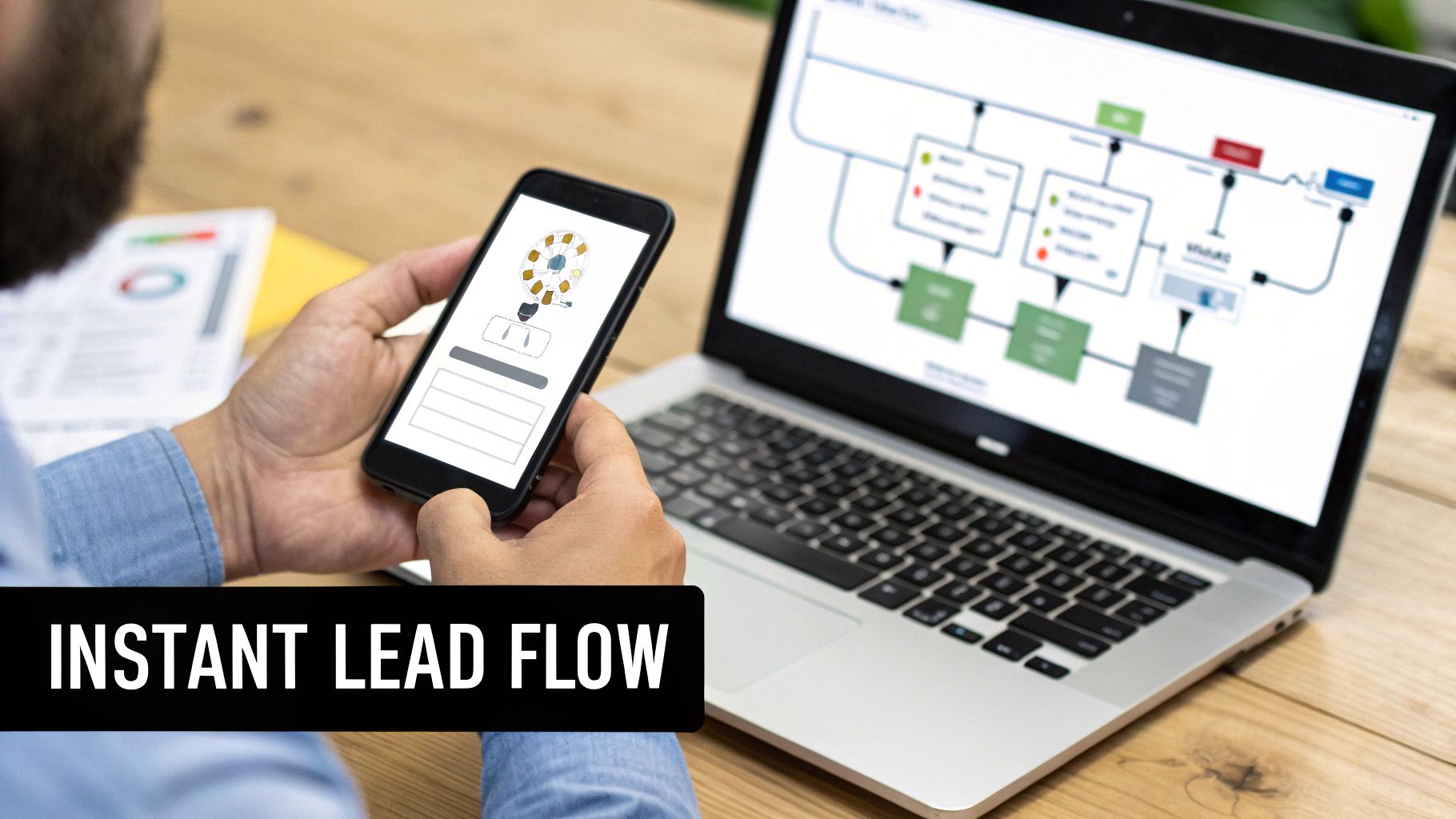
This automated flow doesn't just save you from tedious manual work; it ensures no lead ever falls through the cracks, which has a direct and immediate impact on your bottom line.
How to Automate Your Facebook Lead Flow
Setting up this instant delivery pipeline is much simpler than you might think. With a purpose-built tool like LeadSavvy Pro, you can create a direct connection from your Facebook forms to your favorite app in just a few clicks—no coding or technical wizardry required.
Here’s the basic rundown of how it works:
- Connect Your Facebook Account: First, you’ll grant secure, read-only access to the Facebook Page where your lead forms live.
- Choose Your Destination: Next, just tell it where you want the leads to go. This could be a new row in a Google Sheet, a new contact in your CRM, or even a simple email alert.
- Map Your Form Fields: This is the key step. You simply match the fields from your Facebook form (like "Full Name" or "Email") to the columns in your spreadsheet or fields in your CRM. It's like a digital game of connect-the-dots.
Once you set that connection live, every single lead that comes in gets sent to its destination in real-time. No more waiting. We dive deeper into this setup in our guide on how you can automate Facebook leads and get hours back in your week.
Closing the Attribution Loop: Automation isn’t just about speed. It also allows you to send offline conversion data from your CRM back to Facebook. This teaches the algorithm what a truly valuable lead looks like—someone who actually became a customer—so it can find more people like them.
This final piece transforms your entire ad strategy. You stop optimizing for cheap form fills and start optimizing for high-value customers, making sure your ad spend is driving real revenue and giving you a serious edge over the competition.
Got Questions About Facebook Ad Tracking? We've Got Answers.
Even when you think you’ve got everything buttoned up, Facebook ad tracking can throw a few curveballs. It’s a world filled with nuances that can make even the most experienced marketers second-guess their setup.
Let's dive into some of the most common questions we see pop up. These are the head-scratchers that usually appear right after you go live, when the data starts trickling in and doesn’t quite line up with your expectations.
My Pixel and Conversions API Event Counts Don't Match. Is Something Broken?
Nope, don’t panic. It's completely normal—and even expected—to see different numbers from your Pixel and Conversions API (CAPI). If they don't match one-to-one, it doesn’t mean your setup is broken.
Here's the deal: the two systems capture data in fundamentally different ways, which is bound to cause some small variations.
Your browser-side Pixel is fragile. It can be shut down by ad-blocking software, fail to fire because of a slow network, or get stonewalled by a user's strict browser privacy settings.
CAPI, on the other hand, is your direct, reliable line to Facebook's servers. It’s a server-to-server connection that completely bypasses those browser-level roadblocks. This is exactly why running both is such a game-changer.
The goal isn't a perfect 1:1 match. What you should be chasing is a high Event Match Quality score in your Events Manager. That score tells you Facebook is getting data from both your Pixel and CAPI and, most importantly, is successfully deduplicating them.
Think of CAPI as your safety net. It’s there to catch all the conversions the Pixel misses, giving you a much cleaner, more complete picture to work with. When they’re both running in sync, you get the best of both worlds.
How Do I Decide Which Events to Prioritize for Aggregated Event Measurement?
Aggregated Event Measurement, or AEM, is Facebook's answer to Apple’s iOS 14.5+ privacy changes. It limits you to optimizing for a maximum of eight standard events per domain, so you have to be strategic about which ones you choose.
The key is to rank these events based on their actual value to your business. Your priority list should mirror your customer's journey, starting with the most valuable action at the top.
For a classic lead generation campaign, a smart priority order would look something like this:
- Lead: This is your holy grail. It’s the moment someone hands over their information, showing clear intent. It always goes at the top.
- CompleteRegistration: If you have a multi-step signup, like for a webinar, this is your next most valuable conversion.
- Schedule: Perfect for service businesses where booking a call or appointment is the main goal.
- Contact: A strong signal that someone has reached out through a contact form, email, or phone link.
- ViewContent: This tracks visits to your money pages—like a service page or a specific landing page. It's crucial for building high-intent retargeting audiences.
By setting this hierarchy, you’re telling Facebook what you care about most. If an iOS user takes multiple actions, Facebook will only report the event with the highest priority you assigned. This ensures your most critical conversions always get the credit.
What's the Real Impact of All These iOS Updates on My Ad Tracking?
The impact of Apple’s App Tracking Transparency (ATT) framework is no joke. It boils down to two huge problems for advertisers: signal loss and delayed reporting.
When a user on an Apple device opts out of tracking, your browser-side Pixel is essentially flying blind. That data stream gets severely restricted.
Suddenly, it becomes much harder for Facebook to attribute conversions correctly, build powerful retargeting audiences, and optimize your ads in real-time. You might see your audience sizes shrink, and you'll have a tougher time figuring out who is actually converting and why.
This is exactly why implementing the Conversions API is no longer a "nice-to-have." It’s now a foundational piece of running effective facebook tracking ads.
On top of that, you'll see other changes in your reporting. Attribution windows have been slashed, with the default now at a 7-day click and 1-day view. For opted-out users, reporting is no longer real-time; it's often delayed by up to 72 hours and relies heavily on statistical modeling.
Can I Still Track Leads from Facebook Lead Ads if I Don't Have a Website?
Absolutely. In fact, this is precisely what Facebook Lead Ads were built for. They let a user fill out a form with their info right inside the Facebook or Instagram app, no website visit required.
Since the entire transaction happens on Facebook’s turf, traditional tools like the Pixel aren't involved in the lead submission itself. The "Lead" event is tracked automatically and reported directly within Ads Manager.
The real challenge here isn't tracking the lead—it's acting on it.
Manually downloading a CSV file of your leads from Facebook is slow, clunky, and a surefire way to let a hot prospect go ice cold. This is where the process completely falls apart for so many businesses. You have the lead data, but it’s stuck.
The solution is an automation tool that connects directly to Facebook's API. It pulls new leads the second they come in and instantly pushes them to your CRM or even a simple Google Sheet. This is what enables the rapid follow-up that's critical for turning a fresh lead into a paying customer.
Stop wasting time on manual downloads and start converting more leads. LeadSavvy Pro instantly syncs your Facebook leads to your Google Sheet or CRM, enabling your team to follow up in minutes, not hours. See how easy it is to automate your lead flow.