Build a Powerful CRM on Google Sheets From Scratch
Of course you can. You can absolutely build a functional CRM on Google Sheets. For a lot of small businesses, solo entrepreneurs, and scrappy startups, it's a brilliant, cost-free alternative to bloated, expensive software. It lets you manage your customer relationships using a tool you probably already have open in another tab.
Why Google Sheets Is A Surprisingly Powerful CRM
Think you need some complex, pricey software to keep track of your customers? Think again. The best CRM is the one you'll actually use consistently, and for many of us, that's a simple spreadsheet.
Turning Google Sheets into your sales command center isn't just some clever workaround; it's a strategic move. The biggest draw is the sheer simplicity and control. Unlike rigid platforms that lock you into their specific workflow, a CRM on Google Sheets is your blank canvas. You get to decide exactly what information to track, how to define your sales stages, and what data actually matters to you.
That kind of freedom is usually reserved for enterprise-level software with a price tag to match. Here, it’s free.
The Financial Edge Of A Sheets-Based System
The cost savings are a massive win. Even in 2025, Google Sheets is the go-to starting point for customer management, especially for lean operations trying to make every dollar count. Dedicated CRM platforms can easily run you $30 to $100 per user, per month. Google Sheets? It’s completely free with your personal account or bundled into an affordable Google Workspace subscription.
If you want to dig deeper into this, there are some great insights on using Google Sheets as a CRM in 2025. The bottom line is that this approach frees up cash you can pour back into growing your business.
The real power of a Google Sheets CRM lies in its accessibility and zero learning curve. If you can use a spreadsheet, you can run your sales pipeline without spending a dime or a single day on training.
Seamless Integration And Zero Learning Curve
Another huge plus is how it plugs right into the Google ecosystem you're already using. Your new CRM can effortlessly connect with Google Forms to capture new leads, sync with Gmail for your outreach, and link to Google Calendar to schedule follow-ups. This creates a really smooth workflow without needing complicated (and often paid) third-party connectors.
Because your team already knows how to use Sheets, adoption is instant. There's no steep learning curve or week-long onboarding. You can get organized and start tracking your leads from day one.
Google Sheets CRM vs Traditional CRM A Quick Comparison
To help you decide, here’s a quick side-by-side look at how a DIY Google Sheets CRM stacks up against a dedicated software solution. This should give you a clear picture of the trade-offs.
| Feature | Google Sheets CRM | Traditional CRM Software |
|---|---|---|
| Cost | Free or part of a low-cost Google Workspace plan. | Monthly subscription fees, typically $30-$100+ per user. |
| Customization | Highly flexible. You build exactly what you need. | Often rigid, with customization locked behind higher tiers. |
| Learning Curve | Minimal. If you know spreadsheets, you're set. | Can be steep, requiring training and onboarding. |
| Automation | Requires scripts (Apps Script) or tools like Zapier/Make. | Advanced, built-in automation workflows. |
| Scalability | Best for individuals and small teams. Can slow down. | Designed to scale with large teams and complex data. |
| Reporting | Manual setup with charts and pivot tables. | Sophisticated, automated dashboards and reports. |
| Integration | Excellent within the Google ecosystem. | Wide range of third-party app integrations. |
Ultimately, while a traditional CRM offers more power and automation out of the box, you just can't beat the cost and flexibility of a Google Sheets CRM when you're starting out or running a smaller operation.
Designing Your CRM From A Blank Sheet
So you've decided to build your own CRM in Google Sheets. Fantastic. This is where you get to create a command center for your entire sales operation, right from a blank canvas. The goal isn't just to make a fancy list of names and numbers. We're building a dynamic system that tells you exactly who to call, when to follow up, and where every single lead is in your pipeline.
This whole process starts by mapping out the core pillars of your sales process. Every business is a bit different, but there are some non-negotiable data points you absolutely need. Getting these right from the start saves you from a world of data chaos down the road and makes sure your CRM actually gives you clarity, not just another headache.
Building The Foundational Columns
Think of your columns as the essential questions you need answered about every lead. Just open a new sheet and start creating headers in that first row. You can go crazy with customization later, but for now, let's lock in the fields that practically every business needs to track leads effectively.
These are the absolute must-haves:
- Lead Name: Who are you talking to?
- Company: Where do they work?
- Contact Info: You'll need an email address and a phone number at minimum.
- Lead Source: How did they find you? (e.g., Website, Referral, Facebook Ad).
- Status: What's the current stage of this deal?
- Next Follow-up Date: This is arguably the most important one. It ensures no lead ever goes cold.
- Notes: A simple catch-all for important details from your calls and emails.
This simple set of columns creates the skeleton of your CRM. It gives you just enough information to manage relationships without drowning you in data entry. You can always add more columns later—like "Deal Value" or "Product Interest"—as your process gets more refined.
Keeping Data Clean With Dropdown Menus
One of the quickest ways a spreadsheet CRM fails is inconsistent data. One person on your team might type "In Progress" for a lead's status, while another types "Working." Boom—now you can't filter or report on your data accurately. This is exactly where Data Validation becomes your best friend.
Instead of letting people type whatever they want into the "Status" column, we'll create a standardized dropdown menu. It's a game-changer.
Here’s the quick setup:
- Select the entire 'Status' column by clicking the column letter (like 'E').
- In the top menu, go to Data > Data validation.
- For the "Criteria," choose List of items.
- In the text box, type in your sales stages, separated by commas. Something like:
New, Contacted, Qualified, Proposal Sent, Won, Lost. - Make sure "Show dropdown list in cell" is checked and hit Save.
Just like that, anyone using the sheet has to pick from your predefined list. This simple trick transforms a messy sheet into a structured database that's actually ready for real analysis.
By standardizing your lead statuses with dropdowns, you're not just organizing data—you're laying the groundwork for meaningful reports and dashboards later. Clean data in equals clear insights out.
Bringing Your Pipeline To Life With Colors
Let's be honest, a wall of black-and-white text is tough to scan. You want to glance at your CRM and instantly know what's going on. That's what Conditional Formatting is for. It automatically changes a cell's color based on what's inside it.
Let's use it on our new "Status" column to create a killer visual pipeline.
Color-Coding by Lead Status
- Select the 'Status' column again.
- Go to Format > Conditional formatting.
- Under "Format rules," change the dropdown to Text is exactly.
- In the value box, type
New. - Under "Formatting style," pick a color—maybe a light yellow for new leads. Click Done.
Now, just repeat that for your other statuses, giving each one a unique color. You could make "Qualified" green, "Proposal Sent" blue, and "Lost" a light red. All of a sudden, your sheet looks and feels like a living Kanban board that you can read in seconds.
Highlighting Urgent Follow-Ups
You can also use this same tool to make sure you never miss a follow-up again. By automatically highlighting rows with follow-up dates that are today or in the past, your most urgent tasks will practically jump off the screen.
Flagging Overdue Tasks
- This time, select your 'Next Follow-up Date' column.
- Open the Conditional formatting panel again.
- Set the rule to Date is before and then pick today from the next dropdown.
- Choose a bold, can't-miss-it color like bright orange or red.
With this rule active, any lead with a past-due follow-up date gets flagged immediately. This simple visual cue turns your passive spreadsheet into an active to-do list, guiding your daily priorities and making sure no opportunity ever slips through the cracks. By combining smart columns, data validation, and slick formatting, your blank sheet is now a genuinely powerful CRM.
Automating Your Lead Capture and Data Entry
A good CRM should save you time, and that all starts with smart automation. The real magic of using Google Sheets as a CRM happens when you stop typing in lead details by hand and let the system fill itself. This is where we turn your static spreadsheet into a dynamic, self-populating lead machine.
Let's be honest, manual data entry is a soul-crushing task. It’s not just tedious; it's also where typos and mistakes creep in, tanking your productivity. By automating your lead capture, you get clean, consistent data in real-time. This means your team can follow up with new prospects the moment they reach out, which is a game-changer for conversion rates.
This whole process boils down to three core ideas: structuring your data, validating it, and visualizing it.
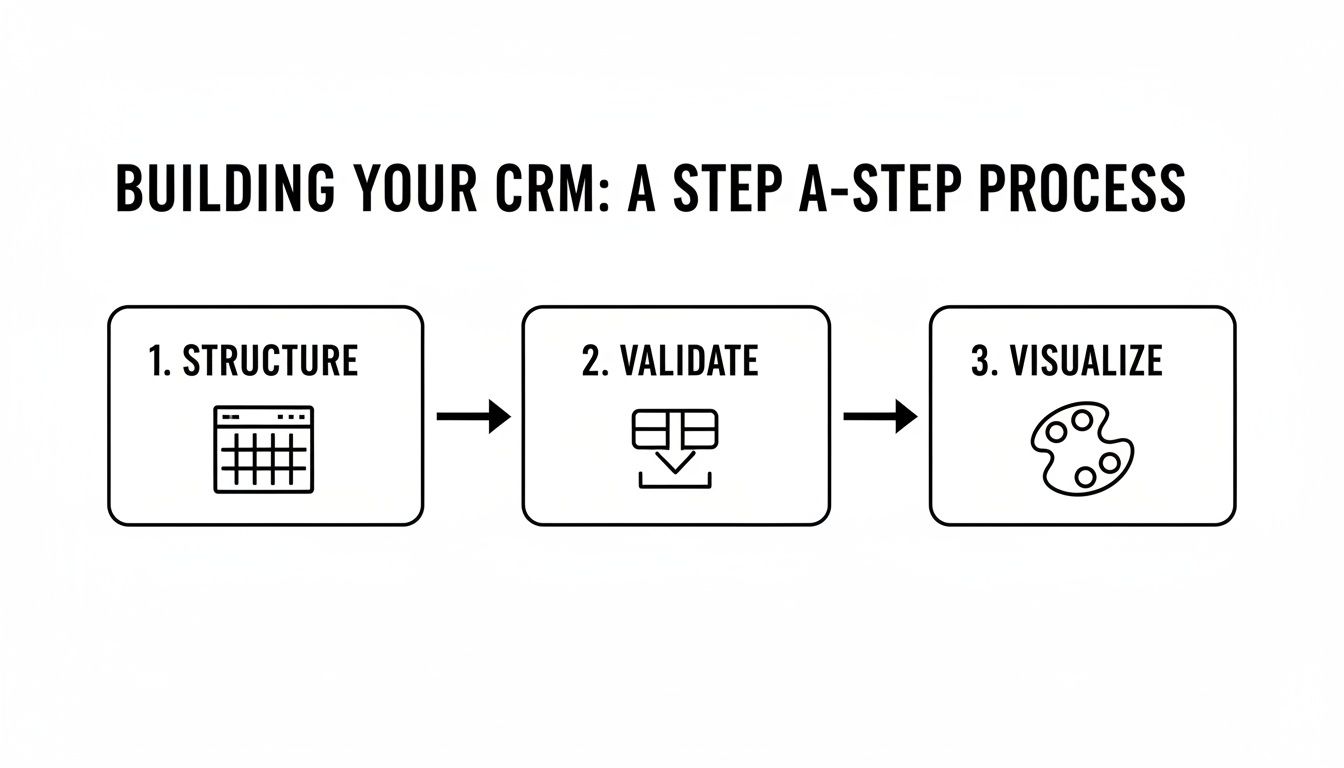
Get these three things right, and you've built a reliable system you can actually trust.
Connect Google Forms for Seamless Website Inquiries
One of the easiest automation wins is hooking up a Google Form directly to your CRM sheet. This is perfect for capturing leads from your website's "Contact Us" page or a landing page you've built for a specific offer.
Getting this set up is surprisingly simple:
- First, create a Google Form with fields that perfectly match your CRM columns (think: Name, Email, Company, Lead Source).
- In the form editor, click over to the "Responses" tab.
- Look for the little green Sheets icon ("Link to Sheets") and click it.
- Choose "Select existing spreadsheet" and just point it to your Google Sheets CRM file.
And you're done. Seriously. Now, every time someone hits "submit" on that form, a new row instantly appears in your sheet, with all the info sorted into the right columns. No more copy-pasting.
For a deeper dive, check out our guide on how to https://leadsavvy.pro/post/forms-to-google-sheets/.
Sync Facebook Lead Ads with Zapier
If you're running social media campaigns, you need to get those leads out of Facebook and into your hands—fast. Manually downloading CSV files is a slow, painful process that guarantees you'll miss out on hot leads. This is where a tool like Zapier becomes your best friend.
Zapier works like a bridge connecting your Facebook Lead Ads to your Google Sheets CRM. You just set up a simple "Zap" that runs automatically every time a new lead comes in from Facebook.
The workflow is straightforward:
- Trigger: New Lead is submitted in a Facebook Lead Ad.
- Action: Create a new row in your Google Sheet.
The most important part of this is field mapping. This is where you tell Zapier which piece of info from Facebook goes into which column in your sheet. For instance, you’ll map Facebook's full_name field to your "Lead Name" column, email to your "Email" column, and so on. Get this right, and your CRM will stay perfectly organized without you lifting a finger.
Level Up with Simple Google Apps Script
For anyone wanting to add a bit more custom power, Google Apps Script is the way to go. You don't need to be a coding genius; you can find simple, pre-written scripts to handle some really useful tasks right inside your sheet.
Here are two scripts I use all the time in my own Sheets CRMs:
- Automatic Timestamps: A script can automatically drop the current date and time into a "Date Added" column the second a new row appears. This is huge for tracking how quickly you're following up.
- Email Notifications: You can set up a script to fire off an email to you or your sales team the instant a new lead hits the sheet. This is perfect for ensuring those high-priority leads get a call back in minutes, not hours.
Automating your data entry is what turns your Google Sheet from a simple list into a truly functional CRM. To take it one step further, you can learn how to sync Google Sheets with Google Calendar. This automates scheduling follow-ups and appointments, creating a system where everything just works together.
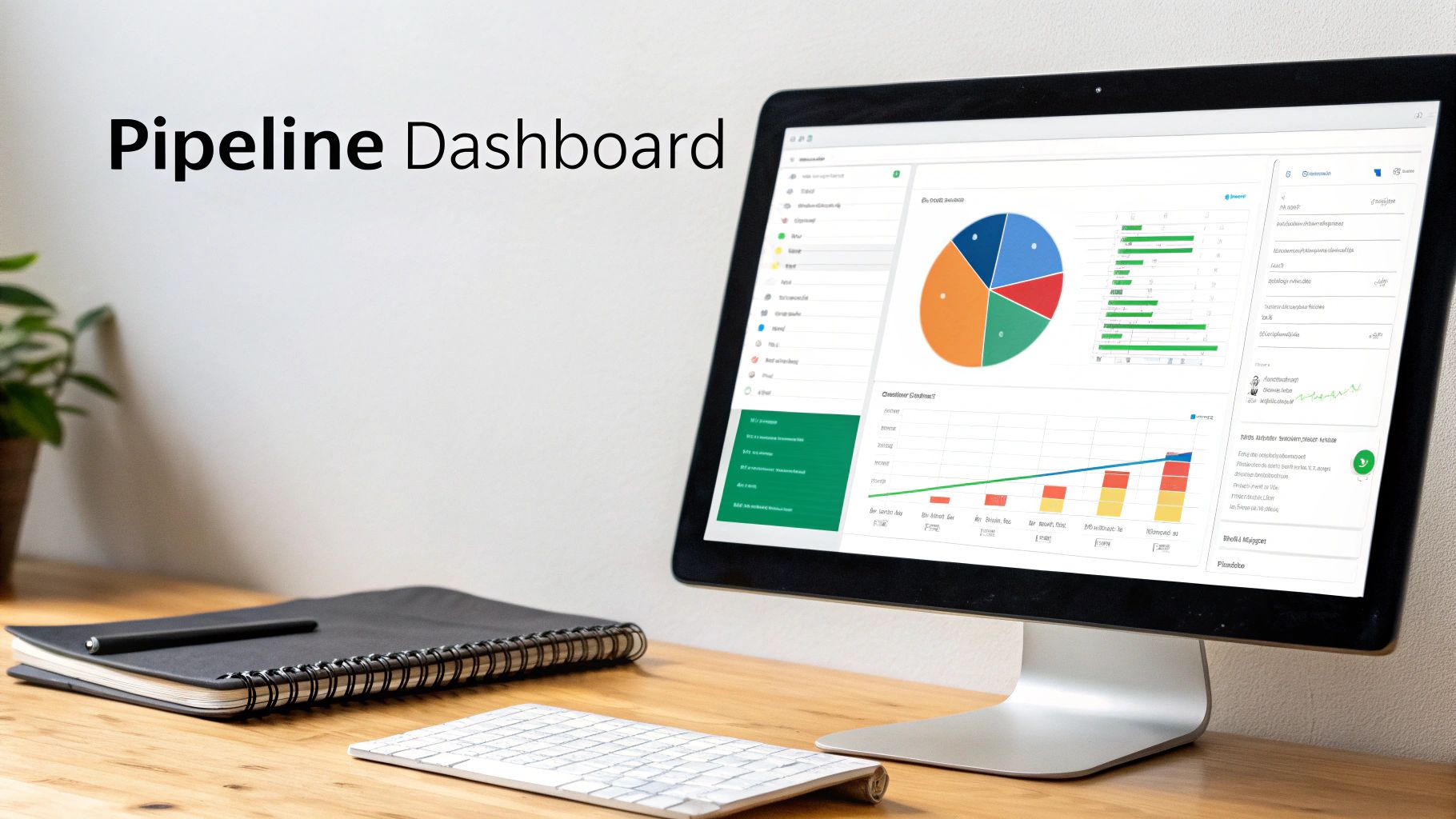
Visualizing Your Sales Pipeline with a Dashboard
Your CRM is filling up with data, which is great, but rows and columns of text don't exactly tell a story. It’s time to make your data talk. We're going to build a dedicated "Dashboard" tab that turns all those numbers into real, actionable insights.
This gives you that crucial high-level view of your sales performance without ever needing to leave your spreadsheet. Forget paying for complex business intelligence tools; everything you need is already baked right into Google Sheets.
By creating a visual dashboard, you'll go from simply tracking leads to truly understanding your sales process. This is how you spot trends, figure out which lead sources are golden, and make sharp, data-driven decisions on the fly.
Calculating Your Core Sales KPIs
Before we start making pretty charts, we need to crunch the numbers that actually matter. First thing's first: create a new tab in your sheet and name it "Dashboard." This will be our command center where we use a few powerful formulas to summarize everything from your main CRM tab.
Let's assume your lead data lives in a tab called Leads. We'll start by focusing on three essential metrics:
- Total Leads by Source: Where is your business actually coming from?
- Deal Status Breakdown: Get a snapshot of your pipeline (e.g., how many deals are qualified vs. lost).
- Total Revenue by Source: Pinpoint which channels are not just busy, but profitable.
To get these numbers, we're going to lean on two of my favorite workhorse formulas: COUNTIF and SUMIF.
Using Formulas to Summarize Data
On your new "Dashboard" tab, set up a small table to track leads from your different sources. In one column, just list them out (e.g., Website, Referral, Facebook). In the column right next to it, we'll pop in a formula to do the counting for us.
If your lead sources are in column D of your Leads sheet, the formula looks like this:
=COUNTIF(Leads!D:D, "Website")
This simple formula scans all of column D and counts every single cell that contains the word "Website." Just repeat this for each of your lead sources. It’s a super effective way to get a clear count without any manual tallying.
Now, for calculating revenue, SUMIF is your best friend. Let's say your lead sources are still in Leads!D:D and the deal values are in Leads!G:G. The formula to find the total revenue from your website would be:
=SUMIF(Leads!D:D, "Website", Leads!G:G)
This tells Sheets to find all the rows with "Website" in column D, then jump over to column G and add up the corresponding dollar amounts. Simple.
Your dashboard is only as good as the data feeding it. Using formulas like
COUNTIFandSUMIFensures your KPIs are always up-to-date in real-time as your team adds or updates leads.
Building Simple and Effective Charts
Okay, now for the fun part. With your KPIs calculated, turning them into clean, easy-to-read visuals is just a few clicks away.
Creating a Lead Source Pie Chart
- Highlight the data in your little table—the lead sources and their counts.
- Head up to Insert > Chart.
- Google Sheets is pretty smart and will often default to a pie chart, but if not, just select it from the "Chart type" dropdown in the editor.
Boom. This simple pie chart instantly shows you which marketing channels are driving the most volume.
Visualizing Monthly Sales with a Bar Chart
- Set up another small table on your dashboard to track monthly wins. List the months in one column.
- Use the
SUMIFformula again to calculate the total revenue for deals marked as "Won" for each month. - Select that data, go to Insert > Chart, and choose a column or bar chart.
This visual gives you an immediate sense of your sales momentum over time. If you want to dive deeper into tracking performance, you might like our guide on building a more comprehensive lead generation dashboard.
By combining a few key formulas with some simple charts, you create a powerful, real-time command center right inside your CRM on Google Sheets. This dashboard is what gives you the clarity you need to manage your pipeline effectively and grow your business with confidence.
Advanced Strategies to Supercharge Your Sheets CRM
So, you've got a functional CRM humming along in Google Sheets. That’s a huge first step. You're tracking leads and have some basic reports. But the real magic happens when you move beyond manual data entry and start making the sheet work for you.
This is where you turn your simple spreadsheet into a genuine sales machine. Let’s get into the strategies that save you time, make sure no lead is ever forgotten, and keep your system running smoothly as your business scales.
Automate Follow-Up Reminders with Apps Script
Forgetting to follow up is probably the single biggest reason deals die on the vine. It’s an easy mistake to make, but a costly one. You can completely solve this problem with a little bit of Google Apps Script to build an email reminder system that runs on autopilot.
Don't let the word "script" scare you. Apps Script is built right into Google Workspace, and you don't need to be a coding wizard to use it. Think of it as a way to give your spreadsheet custom superpowers.
Here’s a practical script that sends you a daily email digest of leads you need to contact.
- From your Google Sheet, click Extensions > Apps Script.
- Clear out any of the default code you see in the editor.
- Paste the script below into the empty editor window.
- Hit the Save project icon (the little floppy disk).
function sendFollowUpReminders() {
var sheet = SpreadsheetApp.getActiveSpreadsheet().getSheetByName("Leads"); // Change "Leads" if your tab is named differently
var data = sheet.getDataRange().getValues();
var today = new Date();
today.setHours(0, 0, 0, 0);
var leadsToFollowUp = "";
for (var i = 1; i < data.length; i++) {
var followUpDate = new Date(data[i][5]); // Assumes follow-up date is in column F (index 5)
followUpDate.setHours(0, 0, 0, 0);
if (followUpDate.getTime() === today.getTime()) {
  leadsToFollowUp += " - " + data[i][0] + " (" + data[i][1] + ")\n"; // Assumes Lead Name in A, Company in B
}
}
if (leadsToFollowUp) {
var email = Session.getActiveUser().getEmail();
var subject = "Daily Follow-Up Reminder";
var body = "Time to connect with these leads today:\n\n" + leadsToFollowUp;
MailApp.sendEmail(email, subject, body);
}
}
Once the code is in, you need to tell it when to run. In the Apps Script editor, find the Triggers icon (it looks like a clock), click Add Trigger, and configure it to run the sendFollowUpReminders function on a daily timer. Just like that, you have a personal assistant who never forgets a follow-up.
Integrate Third-Party Tools for Outreach
Your Sheets CRM is your command center for data, but other tools are built specifically for communication. Hooking them up to your sheet is how you really boost your efficiency. Instead of copying and pasting email addresses one by one, you can connect services that do the heavy lifting for you.
For instance, you can learn how to perform personalized mail merges directly from your Google Sheets CRM. This lets you send highly customized emails to your entire lead list without ever leaving your spreadsheet. It’s a game-changer for staying personal at scale.
And to keep your pipeline full, you can also dive into our guide on automatically syncing Facebook leads to your Google Sheets to make sure every new prospect lands in your CRM instantly.
Best Practices for a Scalable Sheets CRM
As your lead list grows, a messy spreadsheet can quickly become your worst enemy. It gets slow, cluttered, and unreliable. It's no surprise that many businesses run on spreadsheets—a 2025 study found that 32% of UK SMEs use them instead of dedicated CRM software. For micro-businesses (under 10 employees), that number climbs to 50%.
To make sure your sheet can handle the growth, stick to these best practices:
- Archive Old Leads: Don't just delete "Won" or "Lost" deals. Create a separate sheet or tab called "Archive" and move them there. This keeps your primary CRM lightning-fast while letting you hold onto that valuable historical data for future analysis.
- Use Protected Ranges: If you have a team accessing the sheet, someone is bound to accidentally delete a formula or mess up a column. Lock down your critical areas by going to Data > Protect sheets and ranges. You can set it so only you can touch the important structural parts of your CRM.
- Know the Limits: A Google Sheet is a workhorse, but it's not invincible. Once you start pushing past 5,000-10,000 rows, you'll likely notice it getting sluggish. If your sheet starts lagging or you find yourself needing more complex team features, that's your cue to start looking into a dedicated CRM platform.
A Few Common Questions About Google Sheets CRMs
Once you get a Google Sheets CRM up and running, a few practical questions almost always pop up. It’s an incredibly flexible system, but it’s just as important to know its limits so you can manage it well and plan for the future.
Let's just get right to it and answer the big ones. Knowing this stuff upfront will save you a ton of headaches down the road.
How Many Leads Can This Thing Realistically Handle?
This is easily the #1 question, and the honest answer is: it depends. A Google Sheet is powerful, but it's not an infinite database. While the technical limit is 10 million cells, you'll feel the pain long before you get anywhere near that, especially if you have lots of formulas, scripts, and formatting.
For most small businesses, a Google Sheets CRM is fantastic for up to a few thousand leads. I've personally run pipelines with 2,000-3,000 contacts without any major slowdowns.
But once you start pushing past 5,000 rows, you're going to feel it. The sheet will get laggy when you load it, sort data, or try to filter things. It gets frustrating, fast.
The unofficial magic number is usually around 5,000 leads. Once you hit that, the convenience of a free system gets wiped out by slow performance. That’s your cue to start looking at a dedicated CRM.
Is It Actually Secure for My Customer Data?
Totally valid concern. The good news is, Google Sheets is more secure than most people give it credit for, if you use it the right way. You're piggybacking on Google's world-class security infrastructure, which is a huge plus. The real responsibility, though, falls on you to manage who gets in.
To keep your data locked down, you absolutely have to do these things:
- Lock Down Sharing Permissions: Never, ever set your sheet to "Anyone with the link can view." Only give access to specific email addresses and choose "Editor" or "Viewer" carefully.
- Use Protected Ranges: This is a lifesaver if you have a team. Protect your header row and any columns with formulas. It stops someone from accidentally deleting something and breaking your whole setup.
- Enforce Two-Factor Authentication (2FA): Make sure every single person with access to the sheet has 2FA turned on for their Google account. This is the single best thing you can do to prevent unauthorized access.
When Should I Bite the Bullet and Switch to a Real CRM?
Knowing when you've outgrown your spreadsheet is the key to scaling your business without pulling your hair out. Your Google Sheets CRM is an amazing launchpad, but it’s not designed to be a forever home for a growing company.
Keep an eye out for these tell-tale signs that it's time to move on:
- The Lag is Real: Your sheet is painfully slow to load, filter, or update.
- Team Chaos: Multiple people are constantly overwriting each other's updates, or you’re not sure which data is the most current.
- Reporting is a Chore: You spend more time building reports in Sheets than you do actually analyzing the data.
- You Need More Connections: You want to link your CRM to your accounting software, email marketing platform, or other tools, and it's becoming a technical nightmare.
Once these issues become part of your daily routine, it’s a clear sign you’re ready to invest in a dedicated CRM.
Ready to automate your lead capture and stop manually downloading leads? LeadSavvy Pro instantly syncs your Facebook Lead Ads directly to Google Sheets or our built-in CRM, sending you email notifications so you can follow up in seconds. Start for free at https://leadsavvy.pro