How to add admin facebook page: Manage Your Facebook Page Roles
Handing over the keys to your Facebook Page can feel a little nerve-wracking, but it's a necessary step if you want to grow. To add an admin, you'll need to head into your Page's Settings, find the Page Access section, and invite someone using their name or email. From there, you'll grant them a specific role, like 'Full control' if you need another top-level administrator. This simple process is your gateway to securely delegating tasks and scaling your efforts.
Why Managing a Facebook Page Is a Team Sport

Trying to run a successful Facebook Page all by yourself isn't just a fast track to burnout—it's a massive security risk.
Think about it: what happens if you get locked out of your personal Facebook account? If you're the only admin, your business page goes down with it. All that content, your audience, everything—gone. It’s a nightmare scenario that happens more often than you’d think.
Adding at least one other trusted admin is your safety net. They can restore your access in an emergency or keep things running if you're unavailable, turning a high-stakes solo act into a secure, collaborative operation.
Distributing the Workload for Better Results
Beyond the security blanket, teamwork just makes sense for getting things done. One person juggling content creation, comments, DMs, ad campaigns, and customer service is bound to drop the ball.
When tasks fall through the cracks, you miss opportunities. That potential customer asking a question in Messenger isn't going to wait around forever for a reply.
Delegating roles lets you put the right people on the right tasks. A social media manager can focus on creating great content, while someone from your sales team handles incoming inquiries. This divide-and-conquer approach not only lightens your load but dramatically improves the quality of your page's engagement. For a deeper dive, exploring effective social media management strategies can give your team a solid framework for clear roles and responsibilities.
The real power of Facebook's Page roles is specialization. You can give an advertiser access to run campaigns without letting them change your page name or delete your content. It's all about minimizing risk while maximizing results.
Streamlining Operations with Specialized Access
Not everyone on your team needs the same keys to the kingdom. A marketing intern probably just needs to schedule posts, while your ad agency needs access to Performance Insights and the ad account.
Facebook's role-based system was built for exactly this. Before you add an admin to your Facebook page, think about what they actually need to do. Assigning a specific role like 'Editor' or 'Advertiser' gives them just enough access to do their job—and nothing more.
This is especially critical for tools like LeadSavvy Pro, where speed is everything. By giving a sales team member access to manage leads directly from the page, they get instant notifications and can follow up immediately. No more bottlenecks.
As your business grows, you'll find that mastering how to approach managing multiple social media accounts is a non-negotiable skill for scaling your marketing.
Facebook Page Roles at a Glance
Before you start inviting people, it’s a good idea to know what each role can and can't do. Choosing the wrong level of access can create unnecessary risks or prevent someone from doing their job effectively.
This table breaks down the most common roles to help you make the right call.
| Role | Primary Responsibilities | Best For |
|---|---|---|
| Admin (Full Control) | Has complete access to manage all aspects of the Page, including settings, roles, permissions, and deleting the Page. | Business owners and trusted senior partners who need ultimate control. |
| Editor (Task Access) | Can create and manage content, send messages, run ads, and view Page Insights. Cannot manage Page roles or settings. | Social media managers, content creators, and marketing team members. |
| Moderator (Task Access) | Can respond to comments, send messages, and remove comments/ban users. Cannot create content. | Community managers or customer support staff focused on engagement. |
| Advertiser (Task Access) | Can only create and manage ads and view Page Insights. Cannot create organic posts or manage comments. | Freelancers, agencies, or team members who only run ad campaigns. |
| Analyst (Task Access) | Can only view Page Insights and see who published on the Page. The most limited role. | Stakeholders or team members who need to monitor performance without editing capabilities. |
Use this as your guide to grant permissions confidently. Remember, it’s always better to start with the minimum level of access required and grant more permissions later if needed.
Choosing The Right Facebook Page Role
Before you add anyone to your Facebook Page, let's talk about something critical: not all access levels are the same. Giving someone "Full control" is like handing over the keys to your entire business. They can change everything, manage who has access, and even delete the Page.
Think of it this way: you wouldn't give every employee the master key to your office. The same logic applies here. Full control should be reserved for a tiny circle of trusted people, like a co-founder or business partner.
For everyone else, Facebook has a smart, tiered system of roles with specific permissions. This setup lets you give team members, agencies, or freelancers the exact access they need to do their jobs—without putting your Page at risk. It’s all about giving people only the permissions they absolutely need.
Deconstructing The Different Page Roles
Understanding the difference between each role is the first step to delegating work securely and effectively. Each one is built for a specific job, from creating content to crunching the numbers.
For instance, the Editor role is perfect for your social media manager or content creator. They can post content, create Reels, answer comments, and even run ads. But they can’t touch the big stuff, like Page settings or who has access. This keeps your core setup safe.
A Moderator, on the other hand, is your community's gatekeeper. This role is ideal for a customer service rep who needs to manage comments and messages but doesn't need to post anything. They can hide spam, ban trolls, and keep your comments section clean without ever touching your content calendar.
The single biggest mistake I see businesses make is just making everyone an Admin. It feels easier in the moment, but it creates a massive security hole. Always start with the lowest level of permission possible and only grant more access if it's truly necessary.
Specialized Roles For Ads And Analytics
What if someone only needs to do one specific thing? That's where the Advertiser and Analyst roles are brilliant.
- Advertiser: This is made for your ad agency or the freelancer running your campaigns. They can create ads, view performance, and manage budgets. Crucially, they have zero ability to post organic content or mess with your Page info.
- Analyst: This is the most limited role, offering view-only access to your Page Insights. It's perfect for a stakeholder, an executive, or a data nerd who just needs to see how things are performing without having any hands-on duties.
Here's a quick breakdown to help you visualize who gets what:
Detailed Comparison of Facebook Page Role Permissions
This table breaks down the specific permissions for each role, helping you choose the exact level of access needed for team members or partners.
| Permission | Admin | Editor | Moderator | Advertiser | Analyst |
|---|---|---|---|---|---|
| Manage Page Settings & Roles | ✅ | ❌ | ❌ | ❌ | ❌ |
| Publish Content as the Page | ✅ | ✅ | ❌ | ❌ | ❌ |
| Respond to Comments & Messages | ✅ | ✅ | ✅ | ❌ | ❌ |
| Create Ads & View Insights | ✅ | ✅ | ✅ | ✅ | ✅ |
| Remove/Ban People | ✅ | ✅ | ✅ | ❌ | ❌ |
| View Page Insights Only | ✅ | ✅ | ✅ | ✅ | ✅ |
As you can see, the permissions get progressively more limited as you move from left to right. Always choose the role that provides the minimum necessary access.
To dive deeper into managing your page like a pro, check out these actionable social media manager tips that cover all aspects of effective administration.
Choosing the right role isn’t just about security; it's about efficiency. When you add someone to your Page, you’re empowering them to help your business grow. This careful delegation is the foundation of a smooth, secure, and successful social media presence. It prevents accidents, protects your brand, and lets your team operate with confidence.
Adding an Admin Through Meta Business Suite
For most businesses running on Facebook and Instagram, the Meta Business Suite has become the central command center. If you want to add an admin to your Facebook page, this is where you should start. It’s hands-down the most direct and thorough method, giving you fine-grained control over exactly who can access what—from your Page to your Instagram profile and even your ad accounts.
Think of it as your digital headquarters. To get started, you'll need to head over to the Settings section in your Business Suite, which you can usually find by clicking the little gear icon in the bottom-left corner. Once you're in Settings, look for People under the 'Users' category. This is your master list of everyone with a key to your business assets.
You’ll see a big blue "Add people" button. Go ahead and click it. This kicks off the invitation process, which is pretty simple but requires you to pay close attention to the permissions you’re about to grant.
Sending the Invitation and Assigning Access
First up, you'll be asked for the new person's work email address. Make sure you get this right—it’s where their official invitation will land. After you pop in their email, you get to the most important part: deciding what they can and can’t do.
You have two main choices here:
- Employee access (Recommended): This is the safest bet for most team members. It lets you cherry-pick the exact tools and tasks they can manage without giving away the keys to the entire kingdom.
- Admin access: This grants 'Full control' over everything. They can manage all settings, add or remove people (including you!), and control every asset. Only give this level of access to a trusted business partner or a senior-level manager who absolutely needs it.
After picking an access level, Meta will prompt you to assign specific assets. This is where you connect their role to your Facebook Page, Instagram account, ad account, and so on. If they'll be running ads, you might want to send them our detailed Facebook Ads Manager tutorial to get them up to speed.
This quick graphic breaks down the basic flow for adding someone new inside the Business Suite.
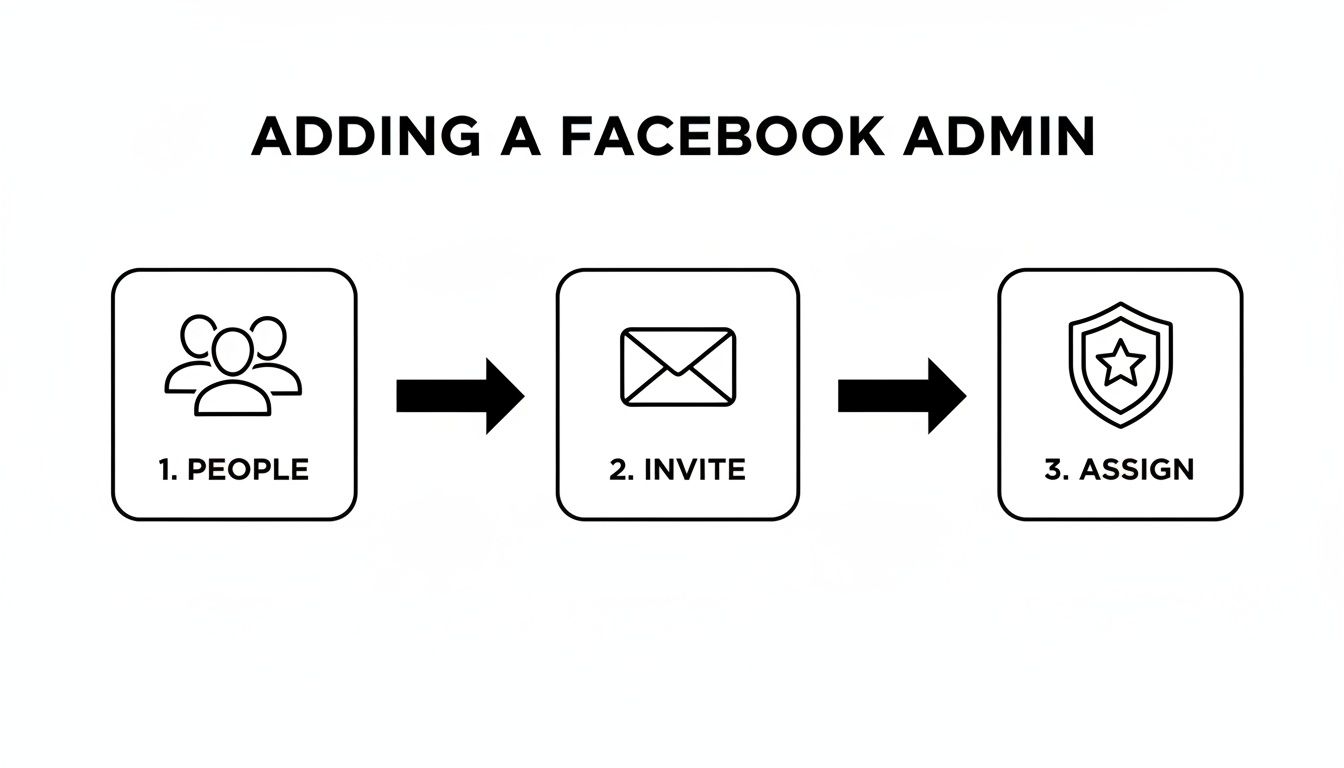
This simple workflow—inviting someone from the 'People' section and carefully assigning permissions—is the gold standard for keeping your team management secure and organized.
The Value of a Skilled Admin
Bringing on a new admin isn't just about ticking off a task; it's a strategic move. A good Facebook Page Admin is a valuable asset, and it's become a recognized role in the marketing world. The compensation reflects that. In the United States, for example, the average salary for a Facebook Page Admin hovers around $43,768 per year, which works out to about $21 per hour. This just goes to show how much businesses value having a skilled person managing their online presence.
A quick heads-up: The invitation you send expires in 30 days. It's always a good idea to follow up with the person you invited to make sure they saw the email and accepted it. If they miss the deadline, no worries—you can just resend the invite.
Once they accept, they'll pop up in your 'People' list, and their access will be live. Using the Meta Business Suite as your central hub gives you a crystal-clear view of who has access to what, which is crucial for both security and sanity as your team grows.
Assigning Roles from the Facebook App or Classic View
Let's face it, not everyone manages their business from a desktop. Most of the time, you're on the go—squeezing in work between meetings or during your commute. Thankfully, Meta knows this and has made it pretty simple to add an admin to a Facebook Page right from your phone.
But what if you're still using the older "Classic" Page interface? The workflow is a bit different. No worries, we'll cover both scenarios here so you can delegate access no matter which version you’re working with.
Adding an Admin on the Facebook Mobile App
The process is surprisingly similar on both iOS and Android. The most important first step? Switching from your personal profile over to your Page profile. You have to be "acting" as your Page to make these changes.
Once you've switched over, just tap your profile picture to pull up the main menu. From there, find your way to Settings & Privacy, and then tap Settings. This is the main control panel for your Page.
Now, you just need to find the access management screen.
- First, tap on Page Settings.
- Scroll down a bit until you see Page Access and select it.
- You’ll see a list of everyone who currently has access. Tap the Add New button at the top.
- Search for the person you want to add by their name or email address.
- On the final screen, you’ll see an option for Full control. Toggle that on to give them full admin permissions.
Facebook will ask for your password one last time as a security check. After that, your new admin will get a notification to accept the invitation, and they’ll be all set.
Using the Classic Page Experience
If your Page still has that "old" Facebook look, your steps are going to feel a little different. The classic view keeps all its management tools in a single settings panel right on the Page itself.
In the Classic view, you'll be looking for a section called 'Page Roles.' The new experience calls this 'Page Access,' but it's the same core idea: giving specific permissions to specific people.
To get started, head over to your Page and look for the Settings tab. It's usually on the left-hand menu, but sometimes it’s tucked away under a "More" dropdown.
Once you click into Settings, look for Page Roles in the left sidebar. This is your command center for access. You’ll see a section called "Assign a New Page Role." Just type the name or email of the person you're adding, pick their profile from the list, and use the dropdown menu to select their role. For a new admin, choose Admin.
Click the "Add" button, pop in your password to confirm, and the invitation is officially on its way.
Best Practices for Securely Managing Page Access
Handing over the keys to your Facebook Page is a big deal. It's an act of trust. But beyond just knowing how to add an admin, you need to know how to do it right to keep your business safe. Security isn't just a technical term; it’s the bedrock of a healthy online presence.
The golden rule here is the principle of least privilege. It sounds complex, but it’s simple: only give people the absolute minimum access they need to do their jobs. Don't make someone a full admin if all they do is run ads or schedule posts. Use specific roles like 'Editor' or 'Advertiser' to limit the potential damage from a simple mistake or, worse, a compromised account.
Set Up a Routine Security Check-In
It's way too easy to grant access and then completely forget about it. That's why a regular audit of who has access to your Page is non-negotiable.
Pop a recurring reminder in your calendar—once a quarter is a great place to start—to sit down and review every single person with a role on your Page.
For each person on that list, ask yourself:
- Are they still part of our team?
- Does their current role still require this level of access?
- Have we wrapped up contracts with any freelancers or agencies on this list?
If you answered yes to that last one, remove their access on the spot. Having a solid offboarding process that includes revoking social media access is just smart business. It’s a core part of learning how to prevent data loss, a skill that goes way beyond just managing a Facebook Page.
Your Facebook Page is a direct line to your customers and a massive business asset. You should protect it with the same seriousness you'd protect your bank account. One compromised admin can wipe out years of hard work in a heartbeat.
Make Strong Personal Security a Team Habit
Your Page’s security is only as strong as its weakest link, and that's often an individual's personal account. It's crucial to insist that anyone with access to your Page enables two-factor authentication (2FA) on their personal Facebook profile.
This one step makes it incredibly difficult for a hacker to take over their account and gain control of your business Page.
This isn't just about preventing bad things; it's about enabling good things to happen securely. The data shows that Pages where admins perform over 31 actions a week see a 5.8% page growth rate and a 94% follower retention rate. With that much activity, you have to make sure every entry point is locked down. These best practices aren't about adding friction; they're about empowering your team to work effectively without putting your brand at risk.
Hitting a Snag? Troubleshooting Common Admin Invite Issues
Even with a perfect game plan, Facebook can throw a curveball when you're trying to add a new admin. You search for a name, and… nothing. The invite link goes stale. It’s a common frustration, but trust me, almost every issue has a surprisingly simple fix.
Let's walk through the usual suspects and how to get past them.
Why Can't I Find the Person I Want to Add?
This is easily the #1 problem people run into. You type a name into the search bar, positive you've got it right, and Facebook pretends that person doesn't exist. Before you assume it's a bug, check one simple thing: are you friends with them on Facebook?
For the classic Page experience, Facebook often requires you to be friends to find someone by name. It's a privacy and security thing. If you're not connected, their search just won't pull up the profile.
If becoming friends isn't an option—which is super common when you're working with an agency or a contractor—there’s a much better way. Always ask for the email address associated with their Facebook account. Inviting someone by email is the most reliable method, period. It completely bypasses the need to be friends.
Here’s a quick checklist:
- Friendship Status: If you're using the older "Page Roles" interface, try adding the person as a friend first. You can always unfriend them after they've accepted the role.
- The Right Email: Double-check that spelling. A single typo will send that invitation into the digital abyss, never to be seen again.
- Privacy Settings: In rare cases, the person might have their profile locked down so tightly that they can't be found via search. Again, email is your best friend here.
Page Roles vs. Business Suite: What’s the Difference?
Another point of confusion is just the terminology. Facebook has a few different ways to manage people, and knowing which is which makes all the difference.
The core difference is scope. Classic "Page Roles" are limited just to the Facebook Page itself. "Meta Business Suite roles," on the other hand, manage access across a whole portfolio of assets—your Page, Instagram account, ad account, pixel, and more.
If you just need someone to post content on the Page, the classic roles are fine. But for anyone touching ads, managing the linked Instagram, or handling broader business tasks, you absolutely should be using Meta Business Suite to grant them access. It ensures they get the right permissions for every tool they need, all from one clean invitation.
Whoops, the Invitation Expired. Now What?
So, you sent the invite, but your new team member missed the notification. It happens.
Admin invitations on Facebook aren't open forever; they automatically expire after 30 days. This is a good security feature, preventing old, forgotten invitations from becoming a backdoor into your Page later on.
If that 30-day window closes, the fix is easy: just send it again.
Go back to the Page Access or People section where you sent the original invite. You should see the pending invitation is now marked as "Expired." Simply click to cancel or remove it, and then run through the process to add an admin to the Facebook Page one more time. It's always a good idea to shoot them a quick message to let them know a fresh invite is on its way.
Managing your team's access is crucial, but so is managing the leads they generate. LeadSavvy Pro automates your Facebook lead collection, sending new leads directly to a Google Sheet or your CRM the moment they come in. Stop downloading CSVs and start converting leads faster by visiting https://leadsavvy.pro.