A Practical Guide to track facebook ads with pixels, CAPI, and UTMs
If you want to track Facebook ads effectively, you have to look past the vanity metrics. It’s about building a solid system to see what’s actually working. This means getting the Meta Pixel and Conversions API set up to catch user actions, using UTMs to tag your links for tools like Google Analytics, and figuring out how to measure sales that happen offline.
Getting this right is the difference between guessing where your money is going and knowing which ads are driving real results.
Why Accurate Ad Tracking Is a Game Changer
Just launching a pretty ad campaign and hoping for the best doesn't cut it on a platform as crowded as Facebook. The real money is made with data-driven decisions, and you can't make those without tracking things properly. When you get your tracking dialed in, you stop playing a costly guessing game and start advertising strategically.
Suddenly, you can answer the most important questions with total confidence:
- Which ad creative is actually bringing in the most sales?
- Is my budget going to the most profitable audience?
- What's my real return on ad spend (ROAS) for this campaign?
From Wasted Budgets to Informed Scaling
Without that clarity, you're just burning cash on ads that don't perform or audiences that never convert. Bad tracking makes it impossible to prove ROI to your boss or clients, and you can forget about scaling your campaigns intelligently.
On the flip side, solid tracking gives you the green light to double down on what’s working and cut your losses fast.
There's a reason Facebook's ad revenue shot up from $39.94 billion in 2017 to a projected $123.73 billion in 2025. Advertisers have confidence because the platform delivers when used correctly. And with the average North American user generating $68.44 for Meta in Q4 2023 alone, the potential is huge—but only if your tracking is on point.
Mastering how to track your campaigns isn't just a technical chore; it's the bedrock skill for growing your business in a noisy digital world. It gives you the proof you need to justify your ad spend and make smarter marketing moves.
To help you get started, here's a quick look at the core tools you'll be using.
Core Facebook Ad Tracking Methods Overview
| Tracking Method | Primary Purpose | Best For |
|---|---|---|
| Meta Pixel | Captures user actions (page views, adds to cart, purchases) on your website through a browser-side script. | Tracking standard on-site events and building retargeting audiences. |
| Conversions API (CAPI) | Sends conversion data directly from your server to Facebook, bypassing browser limitations like ad blockers. | Improving data accuracy, tracking offline events, and creating a more reliable connection for key conversions. |
| UTM Parameters | Adds tags to your ad URLs to track campaign performance in third-party analytics tools like Google Analytics. | Seeing how Facebook traffic behaves on your site compared to other channels (e.g., organic, email). |
| Offline Conversions | Uploads data from your CRM or point-of-sale system to match in-store purchases or closed deals to ad views. | Businesses with long sales cycles or physical locations (e.g., retail, B2B, car dealerships). |
Each of these methods plays a unique role, and using them together gives you the most complete picture of your ad performance.
The Foundation of Smart Advertising
Great tracking is more than just dropping a piece of code on your site. You need to understand how all the pieces fit together. To really get the most out of your ad spend, you need to know the fundamentals of a Facebook Ad and combine that with robust tracking.
This knowledge, paired with a deep dive into your data, is what lets you connect every dollar you spend to a real business outcome. And if you're looking to understand how Facebook connects those dots, our guide on what is attribution modeling is the perfect place to start.
Building Your Foundational Tracking Infrastructure
If you want to actually track Facebook ads effectively, you have to build a solid data foundation first. This isn't about making educated guesses; it's about creating a reliable system that catches every important user action, from that initial ad click all the way to the final sale. The two pillars holding this entire structure up are the Meta Pixel and the Conversions API (CAPI).
Think of them as a detective duo. The Pixel is your on-the-scene investigator, gathering clues from the user's browser. CAPI is the informant back at headquarters, feeding you intel directly from your server. When they work together, nothing slips through the cracks.
The Meta Pixel: Your Eyes on the Ground
The Meta Pixel is just a small snippet of JavaScript code you add to your website. Its entire job is to watch what users do and report that intel back to Facebook. When someone clicks your ad and lands on your site, the Pixel fires off, noting actions like viewing a page, adding a product to the cart, or completing a purchase.
This browser-side tracking is the bedrock for a few critical reasons:
- Conversion Tracking: It connects the dots between specific ads and website actions, so you know exactly which campaigns are making you money.
- Optimization: This data teaches Facebook's algorithm what a valuable customer looks like, helping it find more of them for you.
- Retargeting: It lets you create custom audiences of site visitors, making it easy to hit them with follow-up ads later on.
Getting the Pixel installed is pretty painless these days. Most platforms like Shopify or WordPress have simple integrations that just require you to copy and paste your Pixel ID. You can find this ID inside your Facebook Events Manager. For a more detailed walkthrough, our Facebook Ads Manager tutorial has you covered on the initial setup.
The Rise of the Conversions API (CAPI)
As great as the Pixel is, it has one major weakness: it depends entirely on the user's browser. With the boom in ad blockers, cookie restrictions from companies like Apple, and general privacy controls, the Pixel can often be blocked. In fact, studies show that over 26% of internet users in the US run ad blockers, which means a big slice of your data could be vanishing into thin air.
This is exactly why the Conversions API (CAPI) was created.
CAPI operates on the server side, creating a direct, unbreakable link between your website’s server and Facebook's. Because it bypasses the user's browser completely, it’s immune to ad blockers and cookie-pocalypse updates.
CAPI is your safety net for data loss. It patches the holes left by browser-side tracking, giving Facebook a much clearer, more accurate view of how your campaigns are really performing.
By using CAPI, you guarantee that your most important conversion events—like a purchase or a lead submission—are always recorded. This richer data feed allows Facebook’s delivery system to optimize your ads way more effectively, which almost always leads to better results and a lower cost per conversion.
Pixel and CAPI: The Gold Standard Combination
So, should you pick one or the other? Absolutely not. The gold standard, and what Meta itself strongly recommends, is to run them both simultaneously in what's called a redundant setup.
Here’s why this combo is so powerful:
- Maximum Data Capture: The Pixel grabs what it can from the browser, and CAPI swoops in to capture everything else directly from the server. You miss nothing.
- Event Deduplication: Don't worry about double-counting. Facebook is smart enough to see when the same event comes from both the Pixel and CAPI (it uses a unique event ID to match them), keeping the first one and discarding the duplicate. Your data stays clean.
- Improved Ad Performance: When you feed Facebook's machine learning better, more complete data, it gets much better at predicting who will convert. This means smarter ad delivery and lower costs for you.
To put this in perspective, Facebook has a potential ad audience of around 2.28 billion users. With the average cost-per-click sitting around $1.72 globally (and often over $3.77 in competitive niches), you can't afford to fly blind. Accurate data is the only way to ensure you're getting a positive return on your ad spend.
Setting Up Your Standard Events
Once your Pixel and CAPI are installed, you need to tell them what actions to track. We do this using standard events, which are basically predefined actions that Facebook understands, like "Purchase" or "AddToCart." You'll set these up in your Events Manager.
For an e-commerce business, your must-have events are:
- PageView: Fires when someone lands on any page.
- ViewContent: When someone looks at a specific product page.
- AddToCart: When an item is added to the cart.
- InitiateCheckout: When a user starts the checkout process.
- Purchase: The big one. When a transaction is completed.
If you're in the lead generation game, you'd track events like ViewContent (for a landing page), Lead (when a form is submitted), or CompleteRegistration.
By mapping out this event funnel, you can see exactly where people are dropping off in the process. You can easily check if everything is working correctly by using the "Test Events" tool inside Events Manager, which gives you a real-time feed of the events firing on your site.
Alright, you've got your Pixel and CAPI running, which is a fantastic foundation. But now it’s time to get surgical with your tracking. We need to connect what’s happening in your Facebook Ads Manager to the real-world results you’re seeing in your business.
Think of it like this: Pixel and CAPI tell you what happened on your website after an ad click. That's great, but it's only half the story. To get the full picture, we need to bring in two heavy hitters: UTM parameters and offline conversion tracking.
These tools bridge the gap between Facebook’s data and what’s actually happening in your analytics and your bank account.
See the Bigger Picture with UTMs
So, what are UTMs? They’re just simple little tags you tack onto the end of your ad's destination URL. They don't change the landing page for the user one bit, but behind the scenes, they feed incredibly detailed information into platforms like Google Analytics.
This is how you go from knowing a sale came from "Facebook" to knowing it came from your "Spring Sale Campaign," inside the "Lookalike Audience – Top Spenders" ad set, from that one specific video creative you were testing. That level of detail is gold.
You don’t have to build these by hand, either. Tools like Google's Campaign URL Builder make it almost foolproof. You just fill in the blanks, and it spits out a perfectly formatted URL for you.
Here's what that looks like in action:
Once it’s generated, you just copy that long URL and paste it right into the Website URL field in your Facebook Ads Manager. Done.
A Real-World UTM Scenario
Let's say you're running a campaign for a new line of eco-friendly coffee pods. You’ve got two ad sets running:
- A "cold" audience targeting people interested in sustainability.
- A retargeting audience hitting recent website visitors.
Without UTMs, you’d look in Google Analytics and just see a bunch of traffic from "facebook.com." Not very helpful, right? You'd have no idea which ad set was actually driving the high-value customers.
But with properly tagged URLs, you can see exactly what's going on:
- The sustainability audience spends an average of 3 minutes on your site, but their conversion rate is pretty low. They're interested, but not buying… yet.
- The retargeting audience is only on the site for 90 seconds, but they're converting at a 10% higher rate. Boom.
That single insight is huge. It tells you the retargeting ad is your closer, while the cold audience ad is building awareness but might need a stronger offer or a different landing page to get them over the finish line.
UTMs are what turn your analytics from a blurry, high-level overview into a crystal-clear picture of your campaign performance. You can see precisely how your Facebook traffic behaves on your site, which is absolutely critical for making smart budget decisions.
Don't Forget About Offline Conversions
What about all the sales that don't happen on your website? For so many businesses, a Facebook ad is just the first touchpoint. It might lead to a phone call, a visit to your showroom, or a deal that your sales team closes two weeks later.
If you aren't tracking these events, you're flying blind and missing a massive piece of your ROI puzzle.
This is exactly what Facebook’s Offline Event Sets are for. It's a feature that lets you upload customer data from your internal systems (like your CRM or point-of-sale system) and match it back to people who saw or clicked your ads. It connects your digital ad spend to actual revenue.
How to Track Sales and Leads That Happen Offline
Let's use a local car dealership as an example. They run a Facebook Lead Ad campaign promoting test drives. A lead comes in, the sales team follows up, and a week later, that person drives off the lot in a new car.
Here's how you'd track that all the way back to the ad:
- Create an Offline Event Set: First, head into your Facebook Events Manager and create a new data source specifically for this offline data.
- Collect Customer Info: When the deal is closed, your team needs to collect key customer details like their email address, phone number, and name.
- Format and Upload Your Data: You'll put this sales data into a CSV file. It needs to include the event time, the event type (like "Purchase"), the sale value, and the customer details you collected. Then you just upload this file to your Offline Event Set.
- Facebook Works Its Magic: Facebook takes your uploaded list and securely matches that customer information to Facebook user profiles. If it finds someone who also saw or clicked your ad within your attribution window, it attributes that offline sale directly to your campaign.
Now you can confidently report, "We spent $500 on that campaign, and it generated $45,000 in verified car sales." Without offline tracking, that campaign would have looked like a total dud, and you might have mistakenly turned it off, killing your golden goose.
From Form Fill to Paying Customer: Closing the Loop on Lead Tracking
For a lot of businesses, especially service providers, coaches, and B2B companies, a Facebook lead form submission isn't the finish line—it's the starting pistol. The real challenge isn't just getting the lead; it's proving that lead turned into actual revenue.
This is where most ad tracking falls apart. You can celebrate a low cost-per-lead all day, but if you can't connect that lead to a closed deal, you're flying blind. Closing that loop is everything.
The Black Hole of Manual Lead Tracking
So, you've set up the standard "Lead" event in your Facebook Events Manager. That's a great first step. It tells the algorithm what you want more of.
But then what happens? For most advertisers, those precious leads get dumped into a CSV file inside Business Manager. They just sit there, waiting for someone to manually download them. By the time they land in your sales team's hands, hours—or even days—have gone by.
That delay is a conversion killer. A lead that isn't contacted almost immediately goes cold, fast. You know the ad generated a form fill, but can you trace it all the way to a paying customer? This disconnect is precisely where your ROI gets lost.
Closing the Gap with Real-Time Automation
The fix is surprisingly simple: get rid of the manual download process completely.
Instead of letting leads get stale in a spreadsheet, you need a system that pipes them directly from Facebook into your CRM or sales pipeline the second they come in. This is where an automation tool becomes your best friend.
A platform like LeadSavvy Pro acts as that critical bridge. The moment someone hits "submit" on your Facebook Lead Ad, their info instantly appears wherever your team works—be it a simple Google Sheet or a robust CRM like Salesforce.
The goal is a seamless, real-time flow of data. When your team can follow up instantly, you dramatically increase your chances of closing the deal. More importantly, you get clean, immediate data to prove your ads are working.
This flowchart maps out the ideal journey, from the initial ad all the way to a measurable business result.
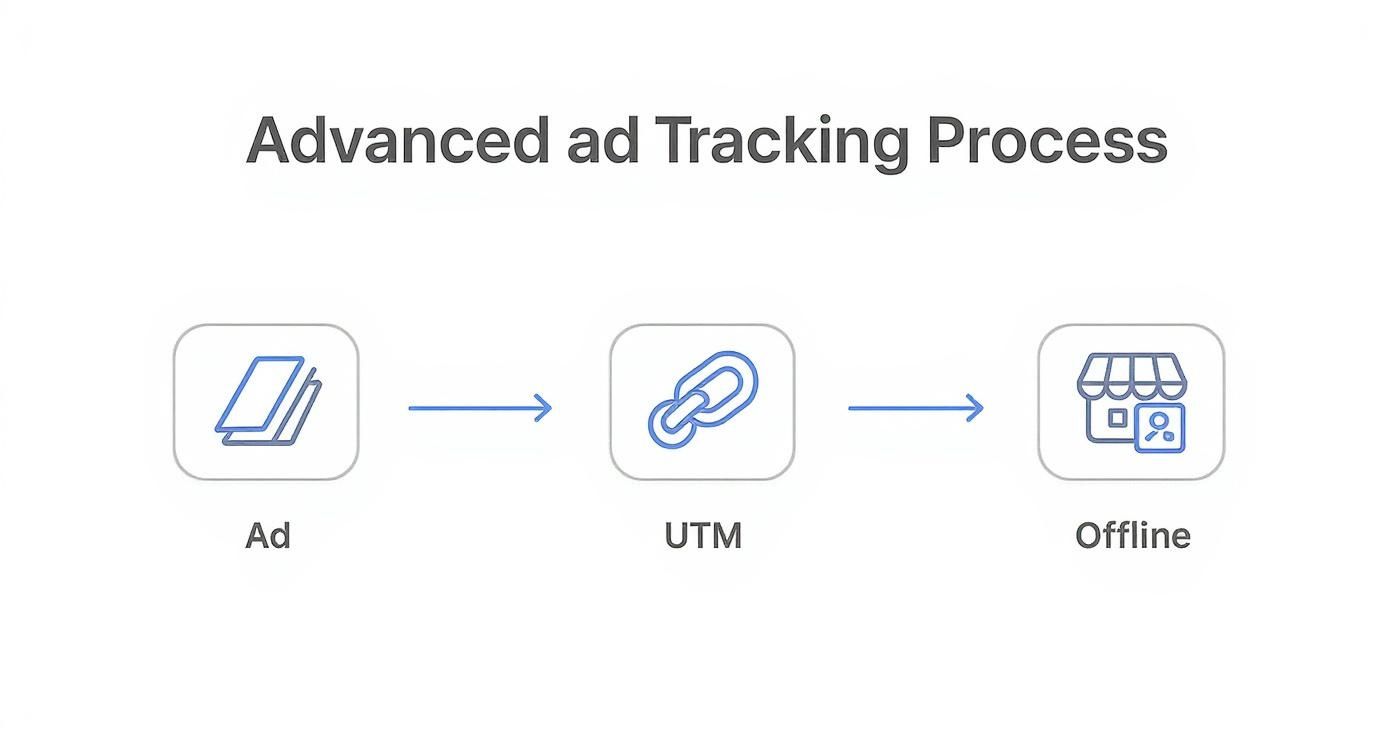
You can see how each piece—the ad, the UTMs, and your offline sales data—connects to paint the full picture.
A Real-World Example: From Ad to Invoice
Let's say you're a marketing agency running ads for free consultations. A prospect sees your catchy vertical video ad, clicks, and fills out the form.
Here's how instant sync changes everything:
- Instant Alert: The moment the form is submitted, LeadSavvy Pro grabs the data. It pings your sales rep with an email notification and adds the lead to your shared Google Sheet.
- Immediate Follow-Up: Five minutes later, your rep is on the phone with the prospect, who is still thinking about your services. A discovery call is booked for the next day.
- CRM Sync: The lead is pushed into your CRM, automatically tagged with the Facebook campaign that brought them in (thanks to hidden UTM fields in your form).
- The Close: A week later, the deal is marked "Closed-Won." You now have a direct, undeniable line from your ad spend to a specific dollar amount in revenue.
That's the power of a connected system. If you want to get really serious about this, it helps to understand the basics of how to build data pipelines. It allows your marketing team to walk into any meeting with concrete proof that their campaigns are delivering high-value customers, not just vanity metrics. For more tips on getting this setup, you can automate your Facebook leads with our guide.
This instant handoff is particularly crucial for engaging ad formats. For instance, vertical video ads with voiceovers can see conversion rates 3% higher per dollar spent. But since 74% of Facebook videos are watched with the sound off, your visuals have to do all the heavy lifting. You can't afford to waste a single lead that comes through.
For most businesses, manually downloading and distributing leads is no longer a viable option. The speed and data accuracy you gain from automation is just too significant to ignore.
Let’s compare the two approaches side-by-side:
Manual Lead Tracking vs Automated Sync with LeadSavvy Pro
| Feature | Manual Process (CSV Export) | Automated Sync (LeadSavvy Pro) |
|---|---|---|
| Lead Speed | Hours or days (leads go cold) | Instant (seconds) |
| Data Accuracy | Prone to human error, copy/paste mistakes | Flawless, automated data transfer |
| Sales Team Workflow | Disruptive, requires constant checking | Seamless, leads appear in existing tools |
| Attribution | Difficult to connect leads to sales | Easy to track from ad to revenue |
| Scalability | Not scalable, becomes a major bottleneck | Infinitely scalable |
| Follow-up | Delayed, inconsistent | Immediate and consistent |
The difference is night and day. Automation doesn't just save you time—it directly impacts your bottom line by ensuring every single lead gets the immediate attention it deserves.
Digging Into Your Data and Fixing Common Tracking Headaches
Having a steady stream of data flowing from your Pixel and Conversions API is a great first step, but raw data is just noise. The real magic happens when you turn those numbers into decisions that actually improve your campaigns.
This is where you graduate from just collecting data to using it to get better results. Your command center for all this is the Facebook Ads Manager reporting dashboard. But if you just stare at the default view, you’ll get lost in a sea of metrics that probably don't even matter for your goals.
Make Your Reporting Dashboard Work for You
First things first: ditch the default report columns. To truly track Facebook ads like a pro, you have to customize your view to focus on your key performance indicators (KPIs).
For an e-commerce brand, the holy grail is usually a profitable Return on Ad Spend (ROAS). Their dashboard should be stripped down to the essentials:
- ROAS (Purchase)
- Cost Per Purchase
- Purchase Conversion Value
- Add to Carts
But a B2B company trying to generate leads? They couldn't care less about ROAS. They're obsessed with lead cost and quality. Their go-to columns will look more like this:
- Cost Per Result (Lead)
- Leads
- Link Clicks
- Click-Through Rate (CTR)
Here’s a huge time-saver: once you set up a view you like, create and save it as a custom column preset. You can build different presets for different campaigns, letting you switch between views in a single click.
Understanding Attribution Windows (This Is a Big One)
One of the most misunderstood—and most critical—parts of analyzing your data is the attribution setting. This simply tells Facebook how to give credit to your ads for a conversion. The default is usually 7-day click or 1-day view.
What does that mean? It means Facebook will count a conversion if someone either clicked your ad within the last seven days OR just saw it in their feed (without clicking) within the last day before converting. Knowing this is crucial for making sense of your results. A shorter window might make your ads look less effective, while a longer one can sometimes over-attribute sales.
Your attribution window should mirror how long it takes a customer to decide. A cheap, impulse-buy product might be fine with a 1-day click window. A high-ticket service needs that 7-day click setting to capture the longer consideration phase.
A Practical Troubleshooting Guide
Even with a flawless setup, things go wrong. Tracking issues will pop up, and knowing how to diagnose them quickly is a must-have skill. Here are the fixes for the most common headaches I see.
The Silent Pixel Problem
You installed the Pixel, but Events Manager is a ghost town—it shows "No activity yet." Don't panic.
- Get the Meta Pixel Helper: This free Chrome extension is your best friend. It instantly tells you if a Pixel is on your site and whether it's firing correctly.
- Check for Typos: It sounds simple, but a single wrong character in your Pixel ID will break everything. Copy the ID from Events Manager and paste it into your site's code again, just to be sure.
- Ad Blockers Are the Enemy: Your own ad blocker might be stopping the Pixel from loading. Test your site in an incognito window with all extensions turned off.
Event Deduplication Conflicts
You're using both the Pixel and the Conversions API (good job!), but you're seeing yellow warning icons about event deduplication. This usually means Facebook is getting the same conversion signal from both your browser and your server but can't tell they're the same event.
The fix is all about the event_id parameter. You have to make sure that for any single conversion, both your browser-side Pixel event and your server-side CAPI event are sent with the exact same event_id. This unique code is what tells Facebook, "Hey, these two signals are for the same purchase—only count it once."
Why Don't My Facebook Numbers Match Google Analytics?
This is easily the most common question out there. The answer almost always comes down to different attribution models.
- Facebook: Uses a multi-touch model. It gives credit to ads that were clicked or viewed within a specific window, recognizing that multiple touchpoints influence a decision.
- Google Analytics: Defaults to a last-click model. It gives 100% of the credit to the very last channel a person came from before they converted.
Neither platform is "wrong." They just have different philosophies on how to measure success. Use Facebook's data to optimize your campaigns inside Facebook. Use Google Analytics to see how your Facebook traffic fits into the bigger picture with all your other marketing channels.
Answering Your Top Facebook Ad Tracking Questions
Even with the perfect setup, you’re going to run into questions when you start digging into your Facebook ad data. It happens to everyone. Getting the right answers can save you a ton of headaches and help you actually trust the numbers you're seeing.
Let's walk through some of the most common hurdles I see advertisers face time and time again. These are the small but crucial details that separate a confusing report from one that gives you real, actionable insights.
What's the Real Difference Between the Pixel and CAPI?
Think of the Meta Pixel and the Conversions API (CAPI) as two messengers trying to deliver the same package to Facebook. The Pixel is the traditional messenger—it works on the user's browser. It sees what someone does on your site and runs back to tell Facebook.
The Conversions API, or CAPI, is a more direct, reliable route. It sends data straight from your website's server to Facebook's server.
So, why does this matter? Reliability. The Pixel is getting less effective every day. It can be easily blocked by ad blockers, cookie restrictions (thanks, iOS 14), and other browser privacy settings. When that happens, you lose valuable data. CAPI is immune to all of that because it doesn't even touch the browser.
The best practice isn't to pick one. It's to use both. Facebook is smart enough to see the same event coming from two sources (the Pixel and CAPI) and will "deduplicate" it, so you only see one conversion. This gives you the most complete and accurate picture possible.
Why Don’t My Facebook Conversions Match Google Analytics?
This is the classic question, and I get it almost weekly. The answer almost always comes down to one thing: different attribution models. They’re measuring success with different rulers.
- Facebook's Model: Facebook wants to take credit for its influence. It typically uses a "7-day click, 1-day view" model. This means it counts a conversion if someone clicked an ad within the last week or just saw an ad in the last 24 hours before converting.
- Google Analytics' Model: By default, Google Analytics uses a "last non-direct click" model. It gives 100% of the credit to the very last channel a user clicked on before landing on your site and converting.
So, who's right? Both of them. Neither platform is wrong; they just tell different parts of the story. Use Facebook's data to understand how your ads are performing inside the Facebook ecosystem. Use Google Analytics to see how Facebook fits into your broader marketing strategy.
How Do I Actually Track In-Store Sales from a Facebook Ad?
This is where things get really powerful for local businesses. You can absolutely connect your online ads to offline purchases using Facebook's Offline Conversions feature.
Here’s how it works in a nutshell: You collect customer info at the point of sale, like an email address or phone number. Later, you upload a simple, formatted file of your sales data into an "Offline Event Set" inside your Events Manager.
Facebook then securely matches that customer information to people who saw or clicked your ads. Suddenly, you can see exactly which campaigns drove real-world revenue, not just website clicks.
Do I Really Need an Automation Tool for Lead Ads?
Technically, no. You can manually log into Facebook, find your form, and download a CSV file of your new leads. But let's be honest—that's a terrible way to do it.
Leads have an incredibly short shelf life. They go cold fast. Every minute you wait to follow up, your chance of converting them drops dramatically.
So, is an automation tool necessary? If you're serious about converting leads, then yes, 100%. It completely removes the manual bottleneck. A new lead comes in, and it's instantly sent to your CRM, your email, or your sales team's phones. This ensures you can engage with prospects while they're still hot, which is the single biggest factor in boosting conversion rates.
Stop letting valuable leads slip through the cracks. LeadSavvy Pro automates your entire Facebook lead capture process, sending new prospects to your team in real-time. Sign up for a free plan and start converting more leads today at https://leadsavvy.pro.